
Skulbase user guide
Academic leadership guide
For principals, deputy principals, directors of studies, heads of department, timetablers and exams officers
Running the academic side of the school: the calendar, the timetable and lesson cover, the exam paper bank from moderation to release, professional records and syllabus coverage, CBC assessment, and approvals.
Other guides: Administrator guide · Class teacher guide · Subject teacher guide · Staff guide · Learner guide · Parent guide · Bursar and finance guide · Boarding and discipline guide · School nurse guide · Transport guide · Library, stores and HR guide
Chapter 1
Getting started
Leaders sign in with their own account like everyone else. The administrator then assigns the duty under Settings → Roles & duties, and its pages appear in the menu the next time you open Skulbase. You only see a page if your school has switched its module on and your role or duty uses it. If something here is missing from your menu, ask your administrator.
1.1Who this guide is for
The duties this guide covers, and what each one can do.
- Principal / Head teacher: every module page and approval. Setting up classes, users and settings stays with Admin accounts.
- Deputy Principal: calendar, papers, timetable, professional records, CBC and discipline; sees boarding and health; approves leave and expenses.
- Director of Studies (DOS): exams, the paper bank, the timetable, professional records and the academic calendar.
- Head of Department (HOD): moderates exam papers and reviews schemes of work and coverage.
- Timetabler: builds and publishes the timetable and arranges lesson cover.
- Exams Officer: runs the paper bank: printing, packing and release.
1.2Activate your account with an invite code
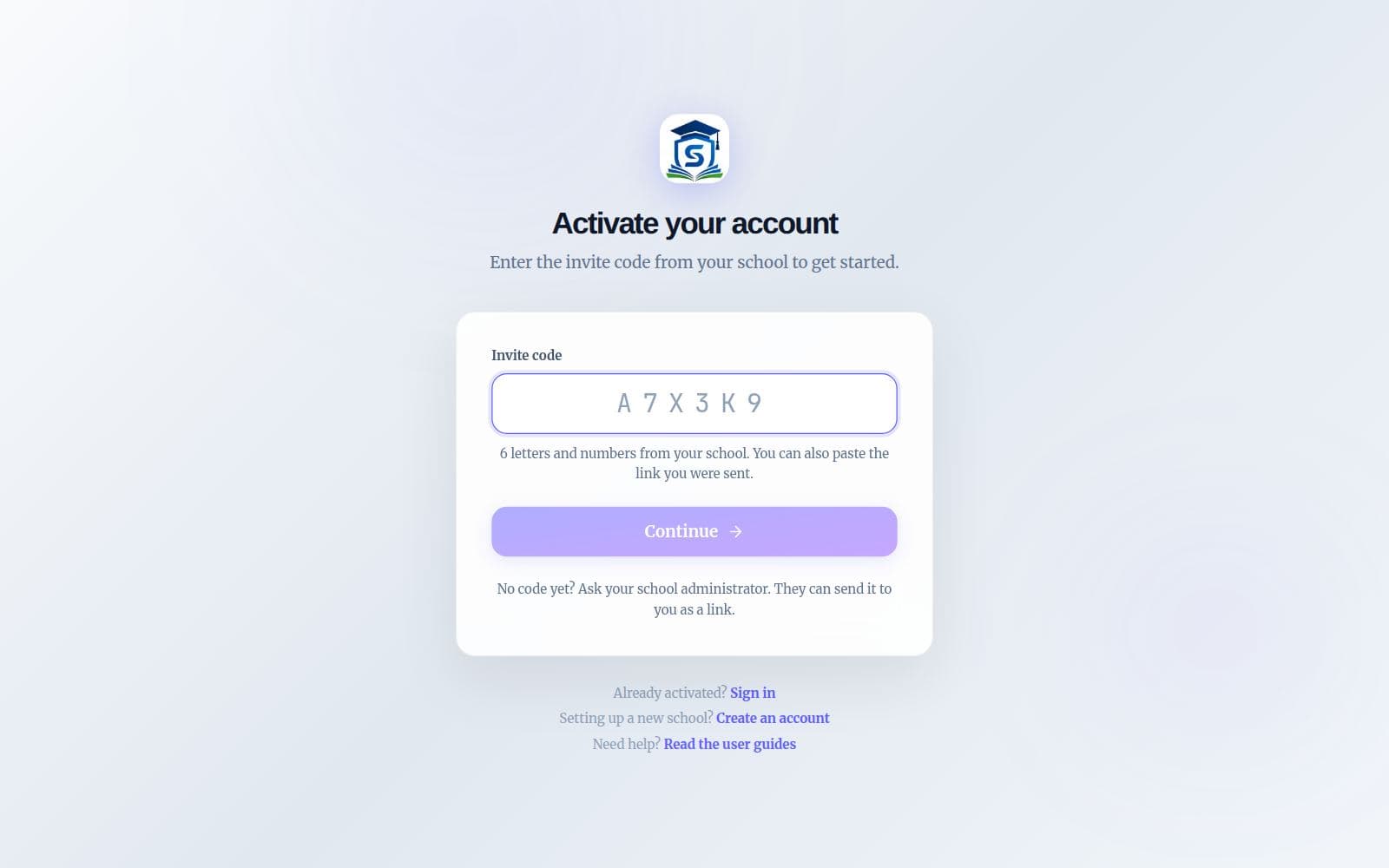
Teachers, staff and learners do not sign up on their own. Your school adds you, and you get a personal invite code (or a link that has the code in it) to set up your login.
Get your code
Your school administrator gives you a six-character invite code, for example A7X3K9, by SMS, WhatsApp, on paper, or as a link. The code only works for your account.
Open the activation page
Tap the link you were sent, or go to skulbase.com, choose Sign in and then “Activate your account”. If you opened a link, the code is already filled in.
Check it is you
Press Continue. Skulbase shows the name the school registered. If it is not you, choose “Not you?” and ask the school for the right code.
Choose how you will sign in
Pick a username (one is suggested for you) and a password of at least 8 characters, or continue with Google. Adding an email address lets you reset your password yourself later.
You are in
You are signed in straight away and land on the home page for your role.
Good to know: Each code can be used once. If yours says it has expired or was already used, ask your administrator to reset your account; they get a fresh code in seconds.
1.3Sign in
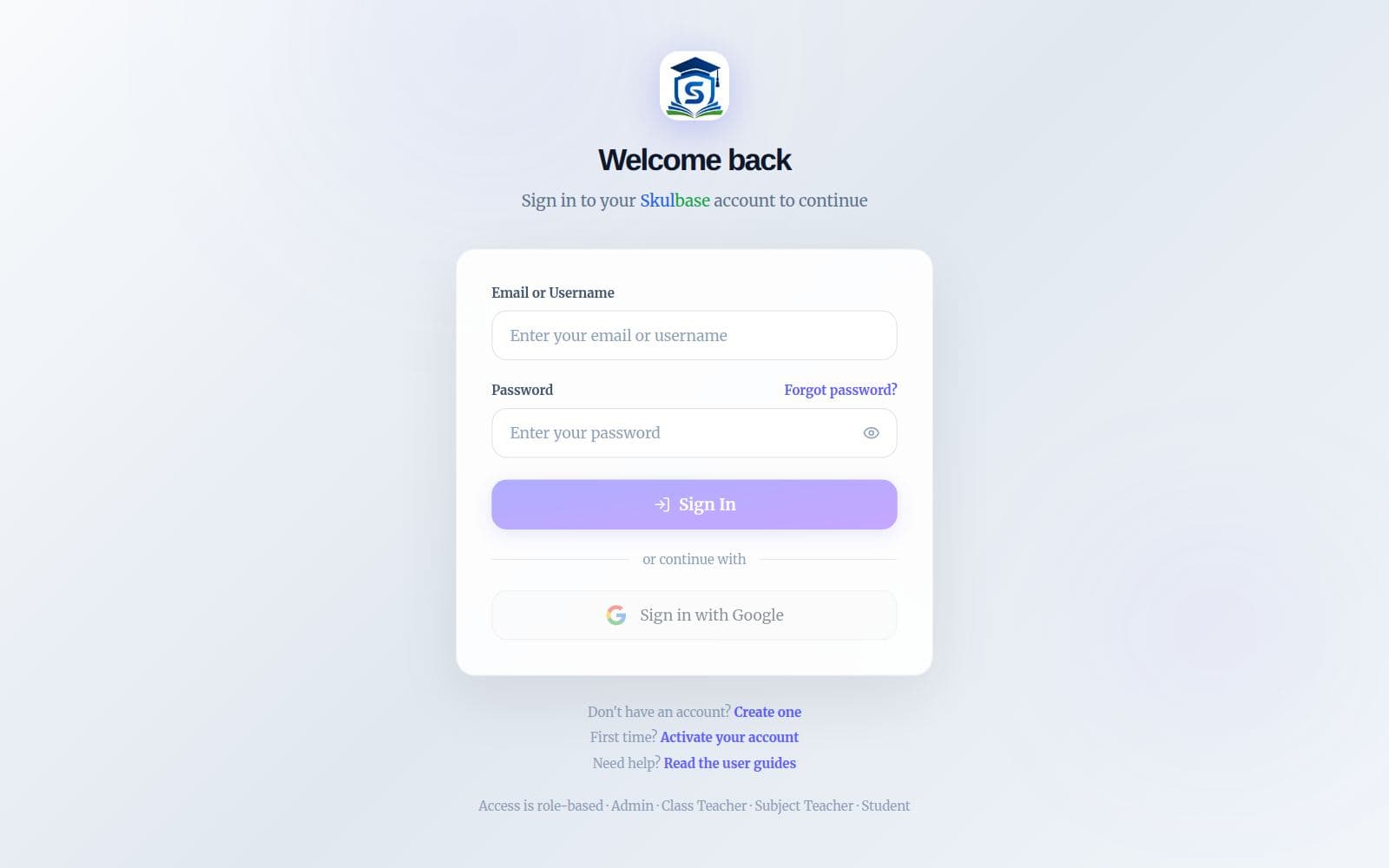
Once your account is active, sign in with your email address or username and your password, or with Google if you activated with Google.
Go to the sign-in page
Open skulbase.com and choose Sign in.
Enter your details
Type your email address or username, then your password, and press Sign In. Or press “Sign in with Google”.
Forgot your password?
Choose “Forgot password?”, enter your email address, and type the six-digit code we email you along with a new password. This also works if you have only ever used Google, and afterwards both ways work.
Tip: Save skulbase.com to your phone’s home screen. It opens like an app and remembers you are signed in.
Chapter 2
The school at a glance
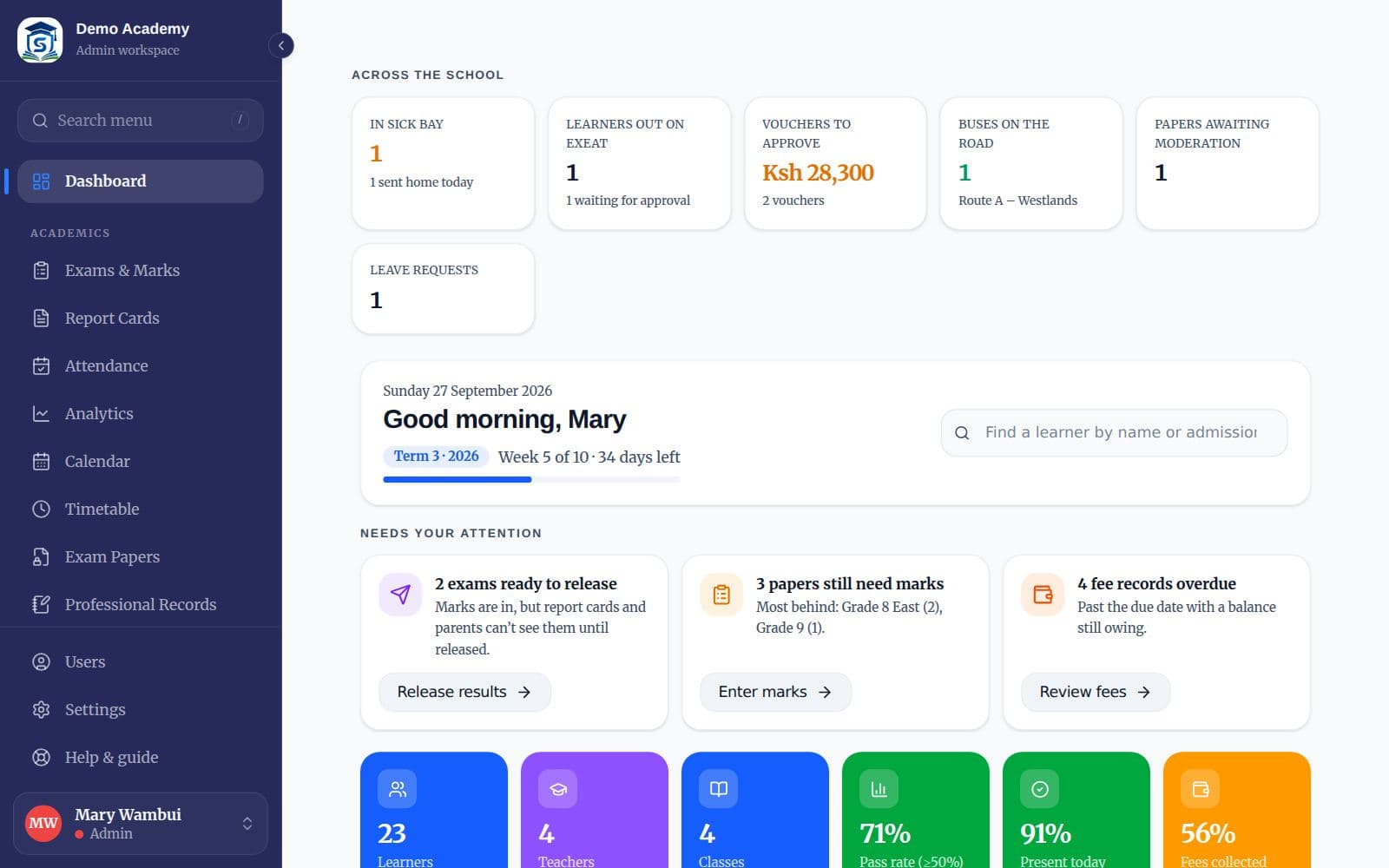
The principal and deputy see live figures from every module the school runs at the top of the dashboard.
2.1Across the school
“Across the school” shows one tile per thing that needs a leader’s eye: learners in the sick bay, learners out on exeat, vouchers waiting for approval, buses on the road, papers awaiting moderation and leave requests. Tap a tile to open its page.
Chapter 3
The academic calendar
Put every exam window, marks deadline and report release on the calendar, so teachers, learners and parents all work to the same dates.
3.1The school calendar
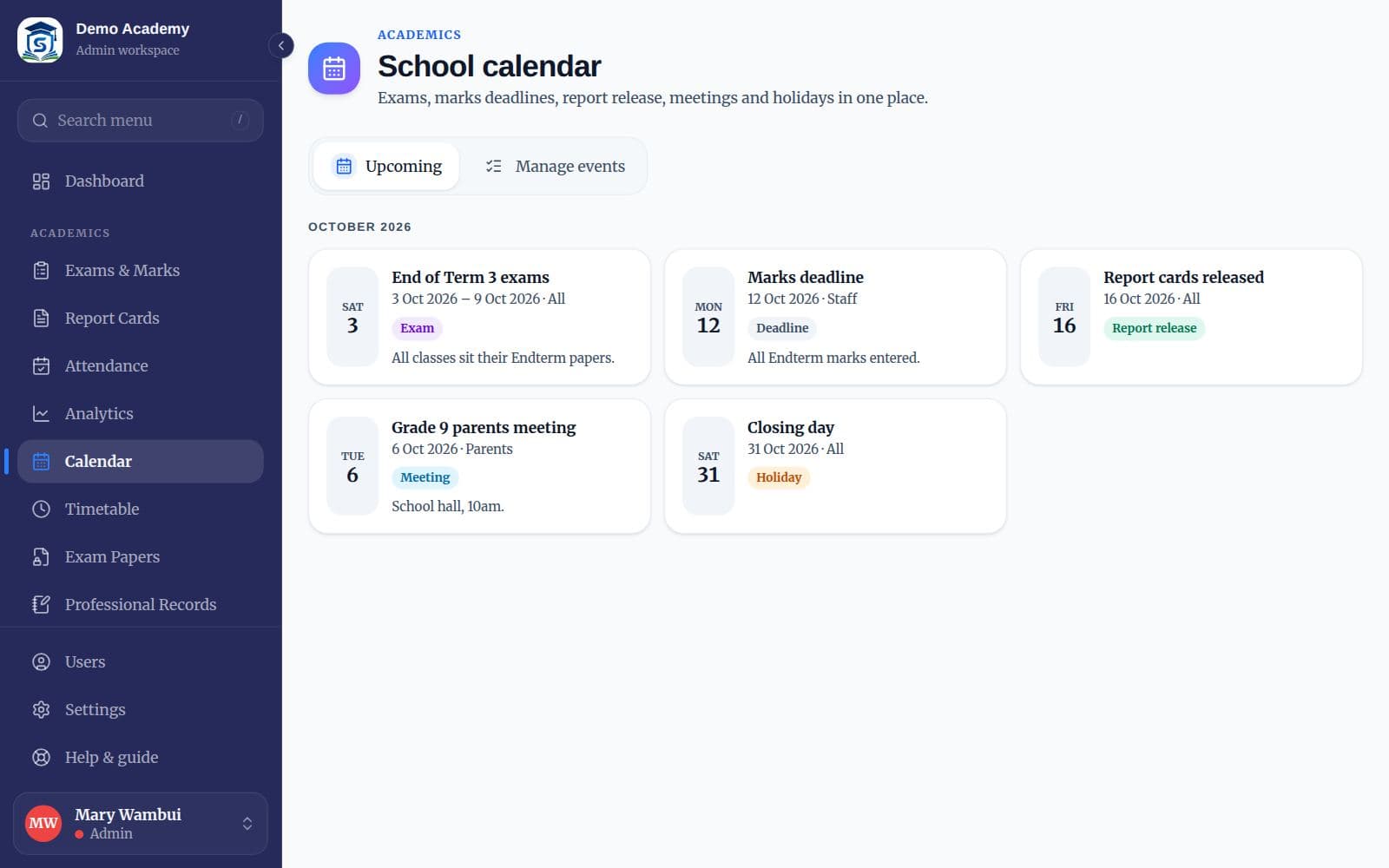
Calendar lists what is coming up across the school: exam windows, marks deadlines, report-card release dates, meetings and holidays. Everyone can read it; the DOS, deputy and principal add events.
Open Manage events
On Calendar, open the “Manage events” tab and press Add.
Describe the event
Give it a title, choose its type (exam, deadline, report release, meeting, holiday or other), the start date and, for several days, the end date.
Choose who sees it
Everyone, staff only, learners or parents. Parents see events meant for everyone or for parents in their portal.
Link an exam (optional)
Link the event to an exam so the dates stay together.
- Events are marked by type (exam, deadline, report release, meeting, holiday) and by who they are for: everyone, staff, learners or parents.
- Parents and learners only see events meant for them.
- To add an event (if you are allowed), open “Manage events”, press Add, and fill in the title, type, dates, who sees it and any details. An event can be linked to an exam.
Chapter 4
Building the timetable
Skulbase generates a clash-free timetable from teaching loads, lets you adjust it, publishes it to everyone, and helps arrange cover when a teacher is away.
4.1Set up the school day
On the “Day & rooms” tab, list the school days and the periods and breaks with their times, and the most lessons in a row one teacher may have. Add special rooms (labs, computer room, hall) so lessons that need them are placed there.
Good to know: If you change the periods after publishing, generate the timetable again so lessons line up with the new day.
4.2Teaching loads
On “Teaching loads”, each row is one subject in one class with its teacher, lessons a week, how many of those are doubles, and any room type it needs.
Tip: “Start from subject assignments” creates a load for every subject each teacher is assigned to a class this year. Then adjust the lessons a week.
4.3Generate and publish
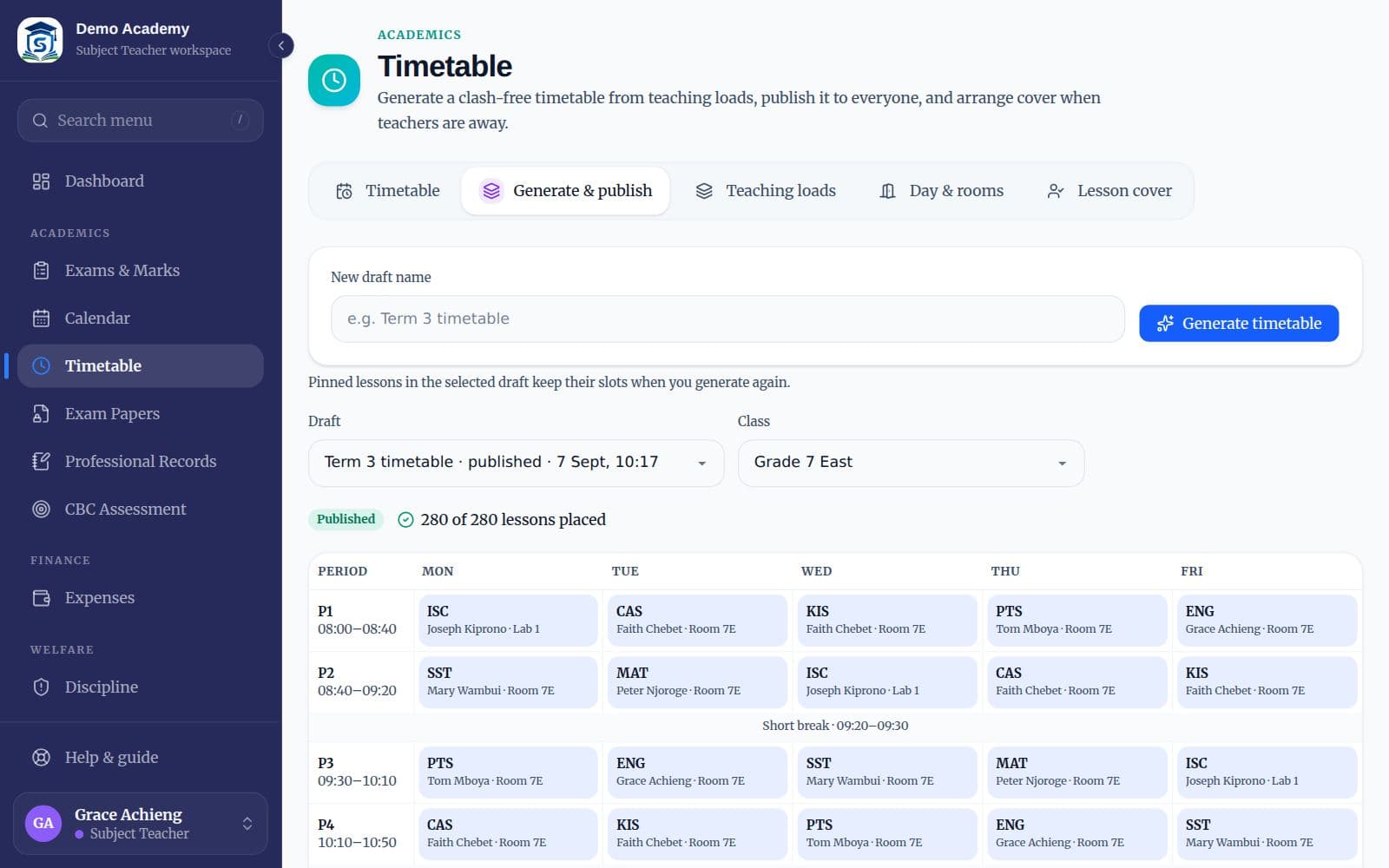
On “Generate & publish”, name a new draft and press “Generate timetable”. Skulbase places every lesson without clashes for teachers, classes or rooms.
Check what was placed
The draft shows how many lessons were placed. Anything not placed is listed: lighten those loads, free the teacher, or add rooms, then generate again.
Adjust by hand
Tap a lesson, then the slot to move or swap it into. “Pin here” keeps a lesson in its slot when you generate again.
Publish
Press Publish. Teachers and learners see it straight away under Timetable, and learners under My timetable.
4.4Arrange lesson cover
When a teacher is away, open “Lesson cover”, choose the date and the absent teacher. Their lessons that day are listed with the colleagues who are free in each period; pick one to cover each lesson.
Tip: Leave requests list the lessons and duties that need cover, so check approved leave first.
Chapter 5
The exam paper bank
Papers move through moderation, printing and release in one place, with every download stamped and logged.
5.1Moderate papers (HOD, DOS)
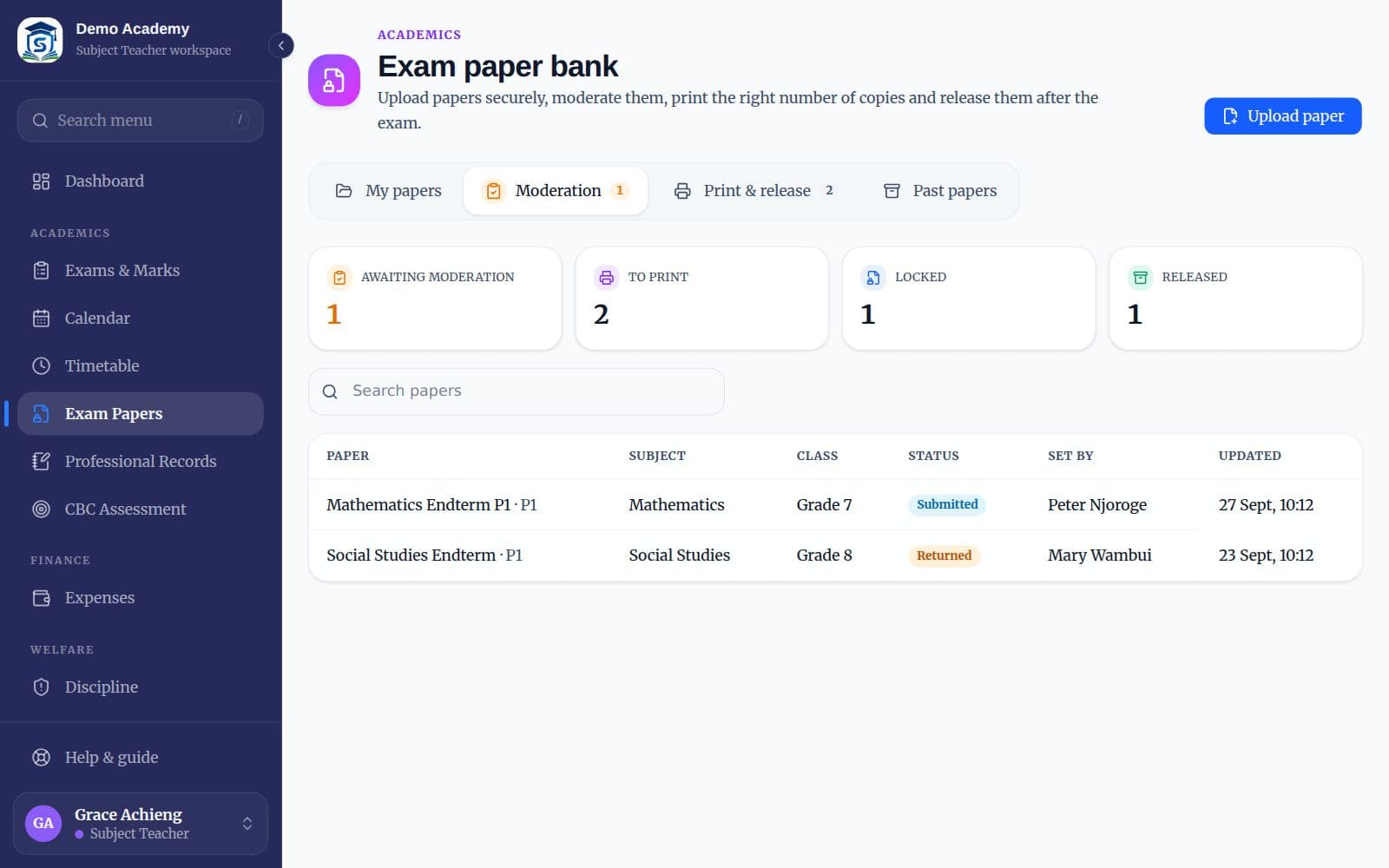
The Moderation tab lists papers teachers have submitted. Open one to read the paper and marking scheme.
Open the paper
Tap it, then “Open paper” and “Marking scheme”. Files open stamped with your name and the time.
Approve or return
Approve it, or return it with a comment saying what to change (a comment is required when returning). The teacher sees the comment in the paper’s History.
5.2Print, pack and release (Exams Officer)
The “Print & release” tab lists approved papers with the number of copies each class needs. Approved papers are locked so nobody can change them.
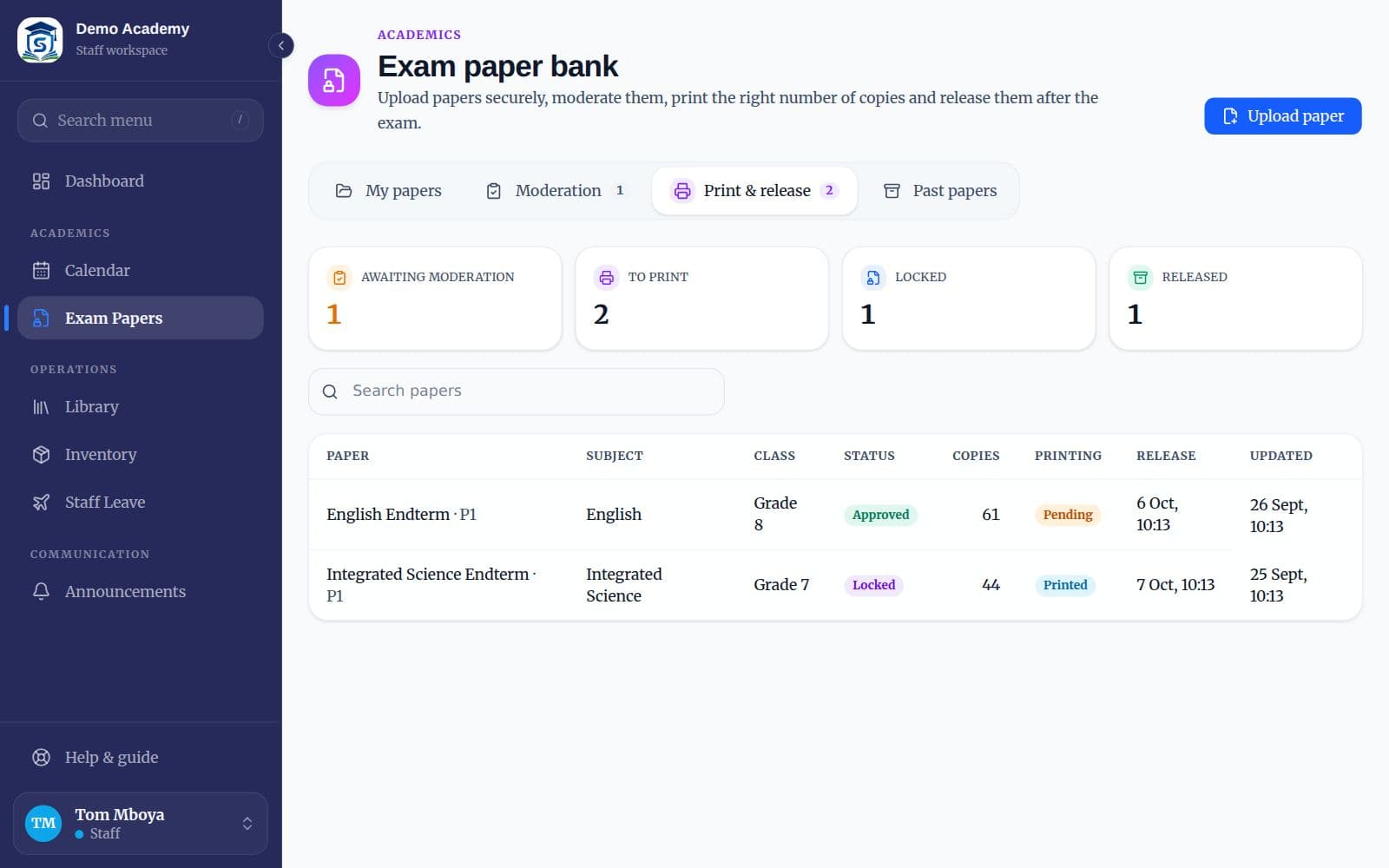
- Mark a paper Printed when the copies are done and Packed when they are sealed for the exam room.
- After the exam (at the release time set by the teacher) release it; it then appears under Past papers for revision.
5.3How teachers submit papers
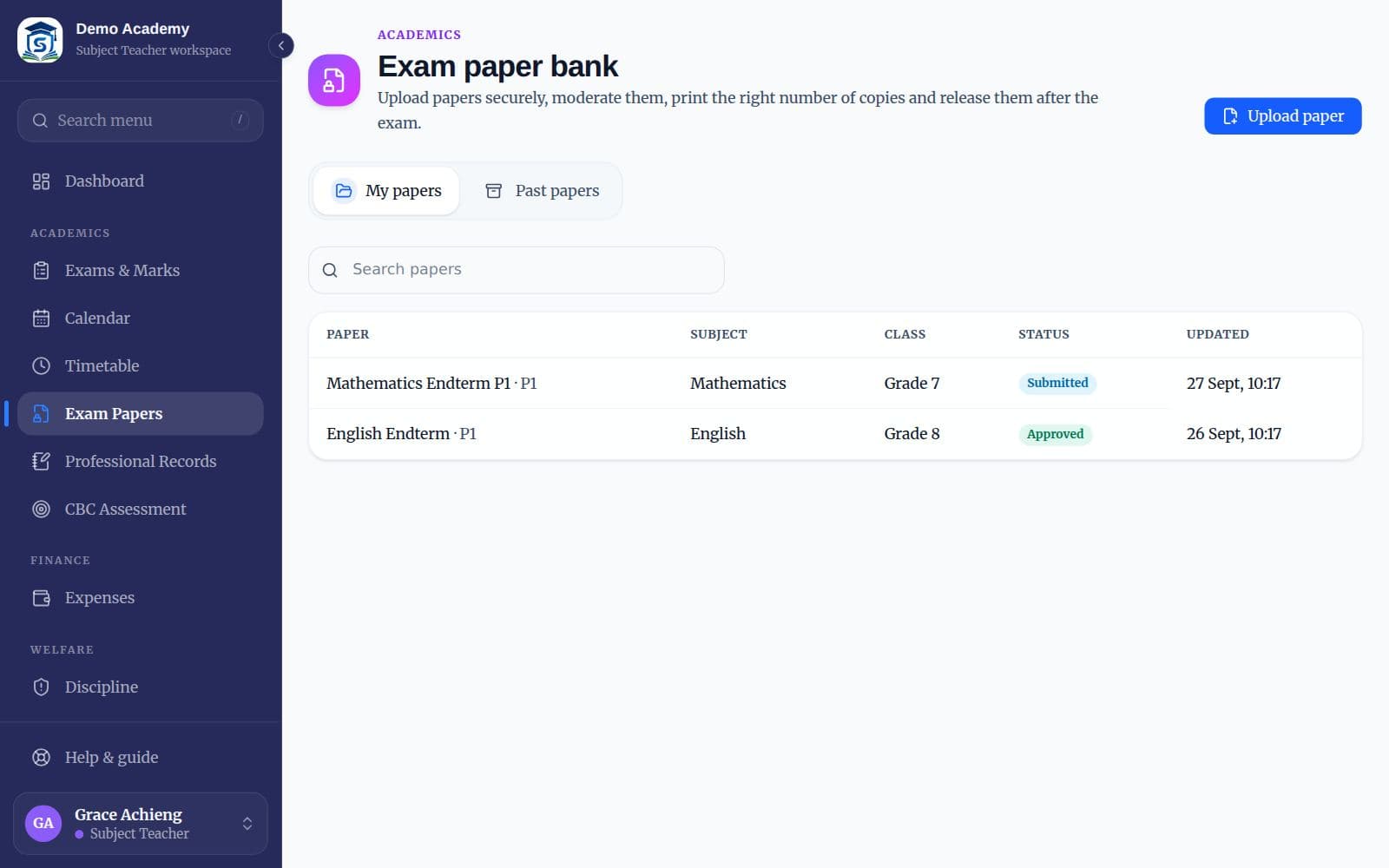
The Exam paper bank keeps exam papers safe until the exam. You upload your paper, your head of department moderates it, the exams office prints it, and it is released after the exam.
Upload
Press “Upload paper”. Give it a title (for example “End of Term 2 Mathematics”), choose the subject, class level and term, the paper label (P1, P2), how many copies are needed, and when it may be released after the exam. Attach the paper (PDF or Word) and, ideally, the marking scheme.
Submit it
Open the paper and submit it for moderation. Its status changes from Draft to Submitted.
Act on comments
If it comes back Returned, read the moderator’s comment in its History, replace the files and submit again. Once Approved it is locked for printing.
- Papers open stamped with the viewer’s name and the time, and every download is logged, so leaks can be traced.
- Past papers are available once released, for revision.
Chapter 6
Professional records and coverage
Heads of department and the DOS review schemes of work and follow syllabus coverage class by class.
6.1Review schemes of work
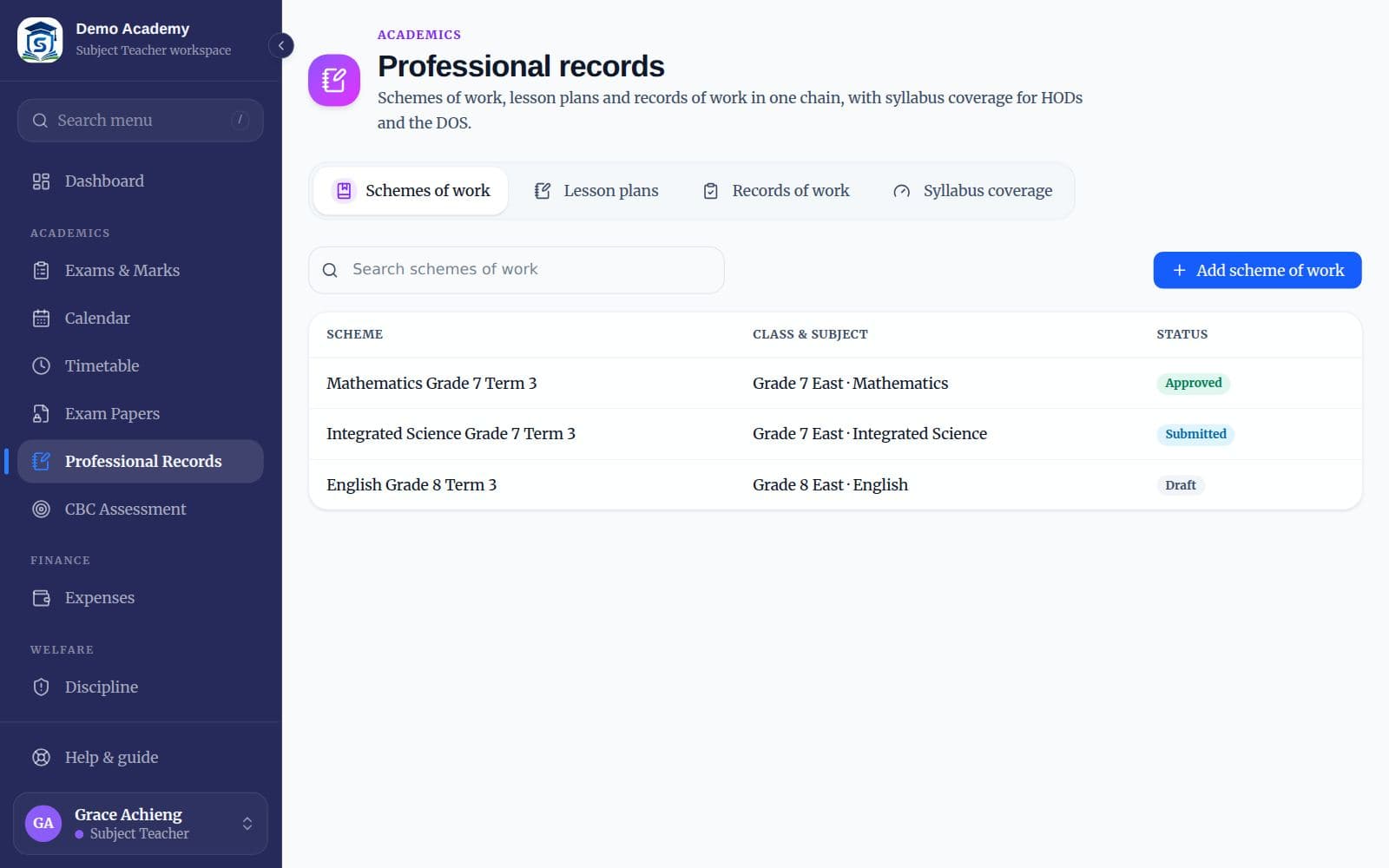
Submitted schemes show “Submitted” on the Schemes of work tab. Open one, read it, and approve it or return it with a review comment.
6.2Syllabus coverage
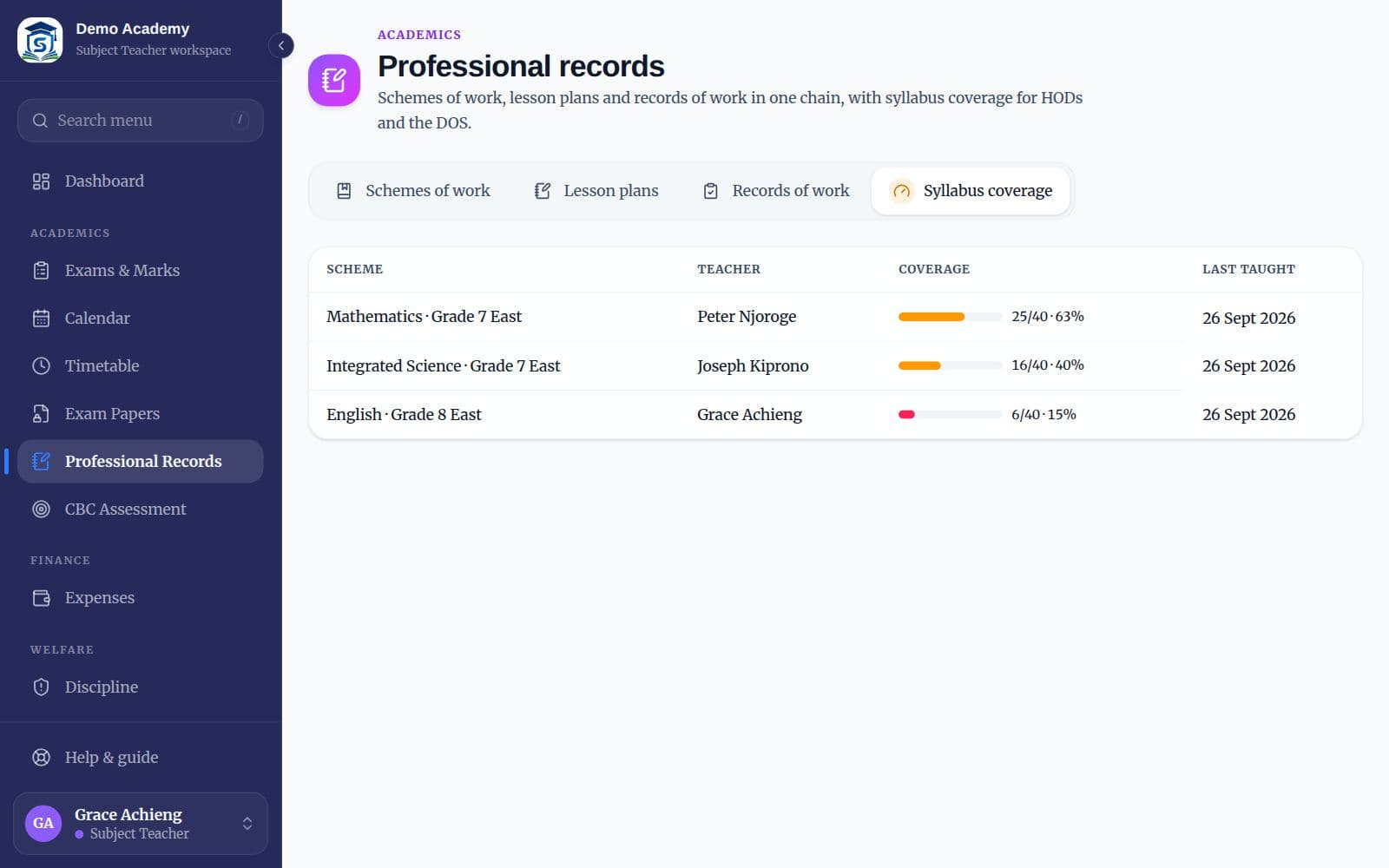
The Syllabus coverage tab shows, for each scheme, how many planned lessons have been taught, as a percentage, and when the class was last taught.
6.3CBC assessment
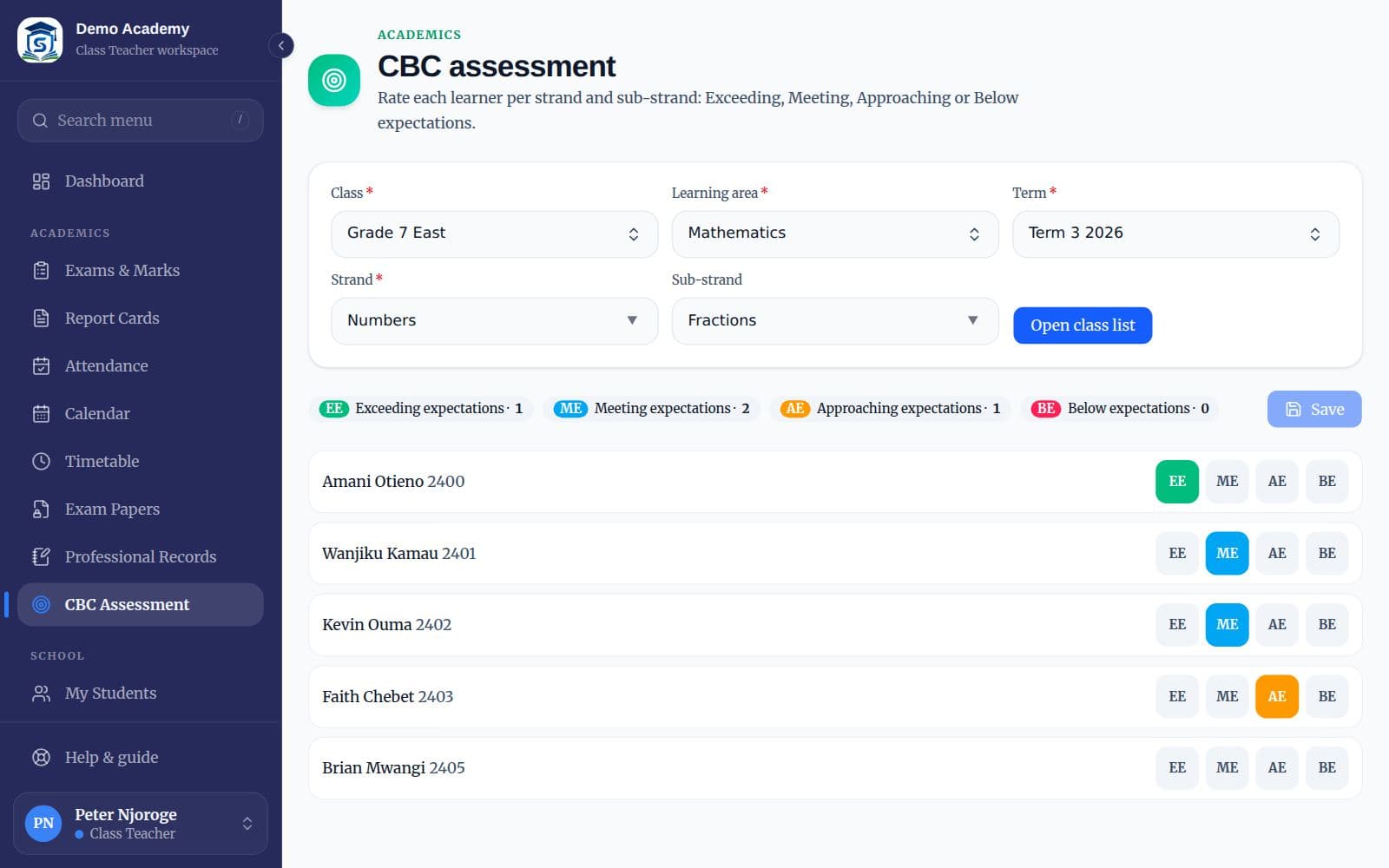
CBC Assessment records each learner’s level for a strand and sub-strand: Exceeding (EE), Meeting (ME), Approaching (AE) or Below (BE) expectations.
Choose what you are assessing
Pick the class, the learning area, the term, and the strand (for example Numbers) and sub-strand (for example Fractions).
Open the class list
Press “Open class list”. Every learner in the class is listed.
Rate each learner
Tap EE, ME, AE or BE on each row and add a comment if you like. The totals at the top update as you go.
Save
Press Save. You can come back and change a rating later.
Chapter 7
Approvals
The principal and deputy approve staff leave and spending.
7.1Approve staff leave
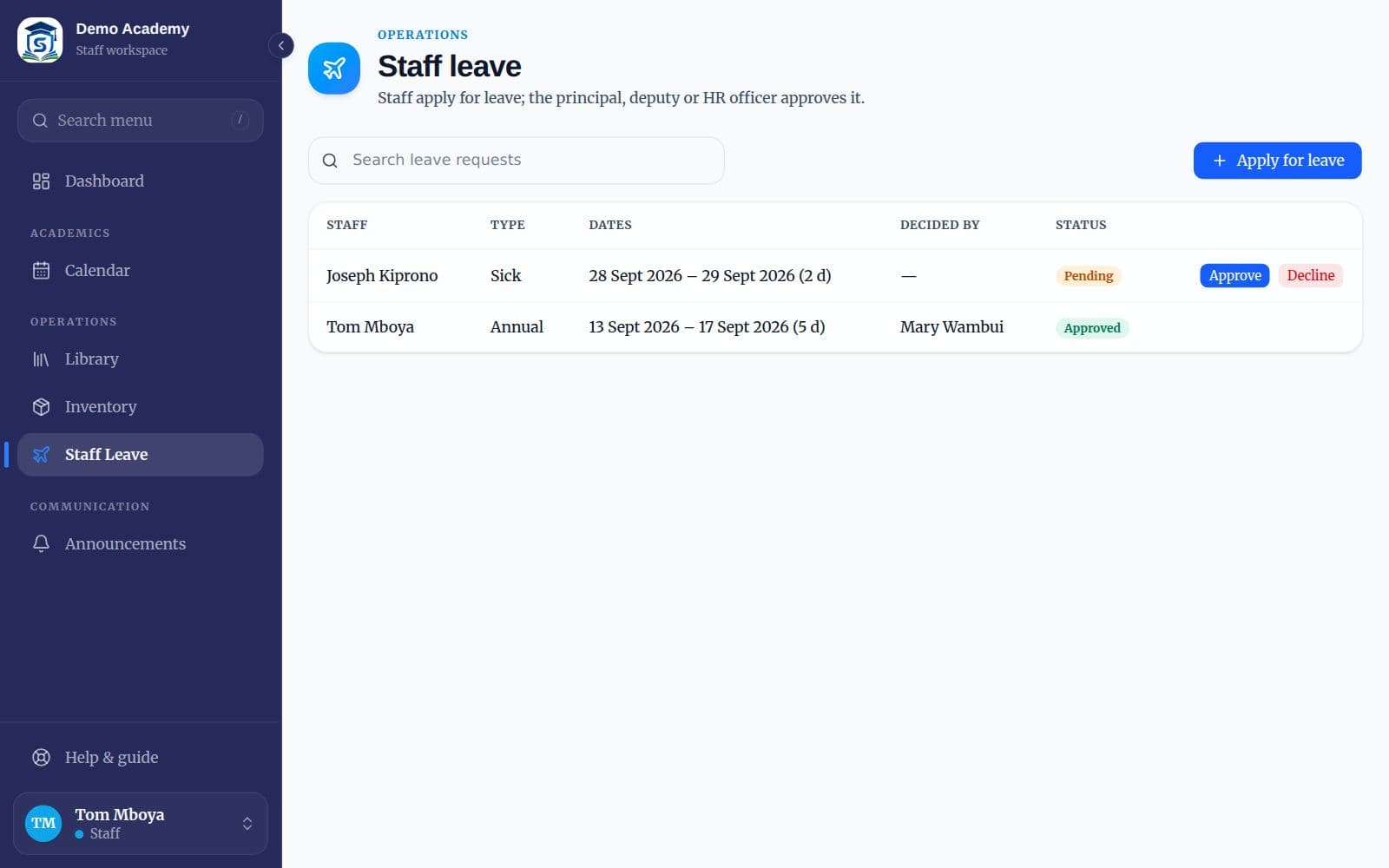
Staff Leave lists every request with the dates and who will cover. Press Approve or Decline; the teacher sees the decision straight away.
Apply
Press “Apply for leave”. Choose the type (annual, sick, maternity, compassionate and so on), the first and last day, and the reason.
Arrange cover
Under “Lessons and duties to cover”, say who will take your classes or duties, so the timetabler can arrange cover.
Wait for a decision
The request shows Pending until it is approved or declined. You can edit or cancel it while it is pending.
7.2Approve expenses
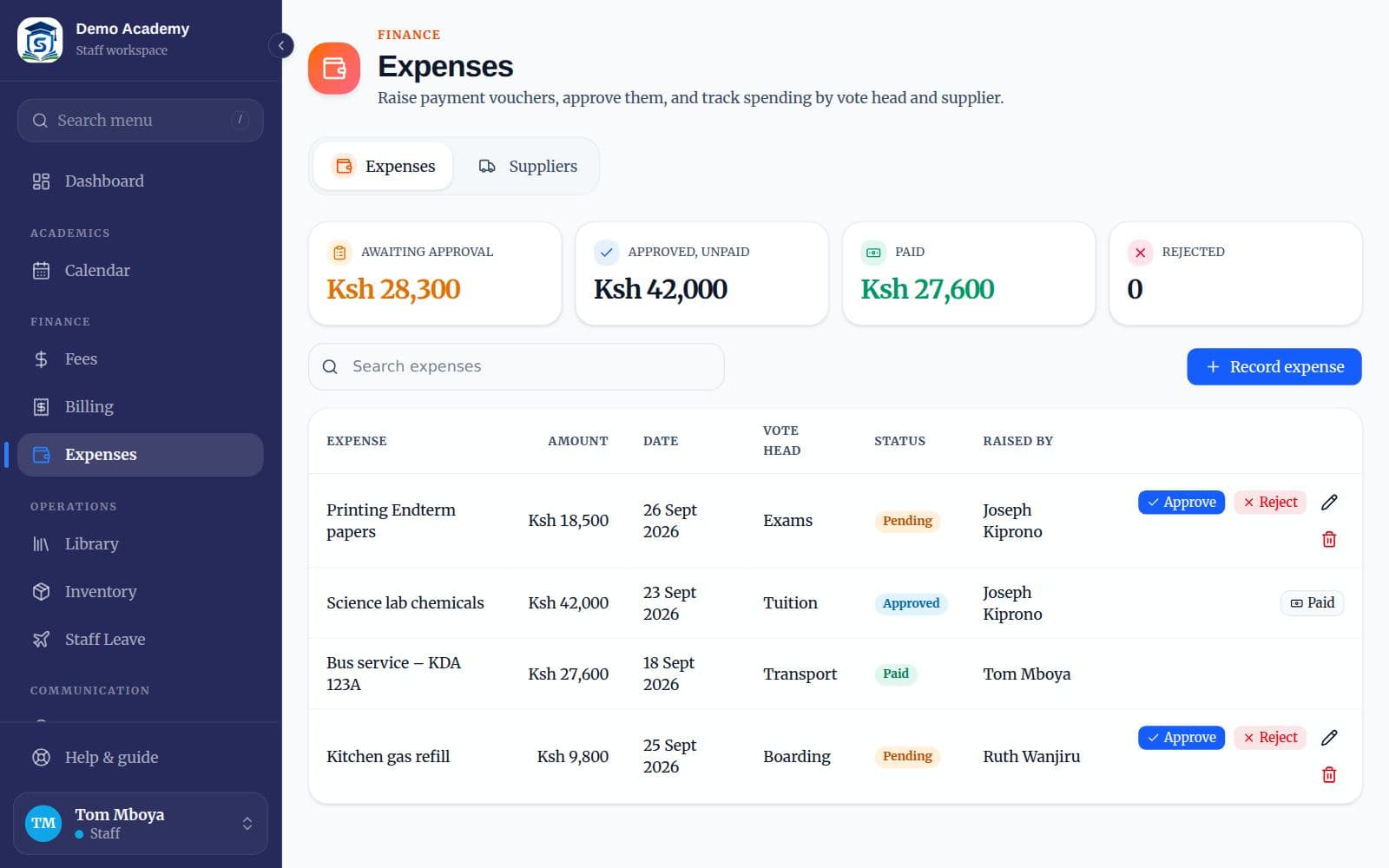
Vouchers raised by staff wait under “Awaiting approval” on Expenses. Approve or reject each one; the bursar then pays approved vouchers and records the payment.
7.3Report a discipline incident
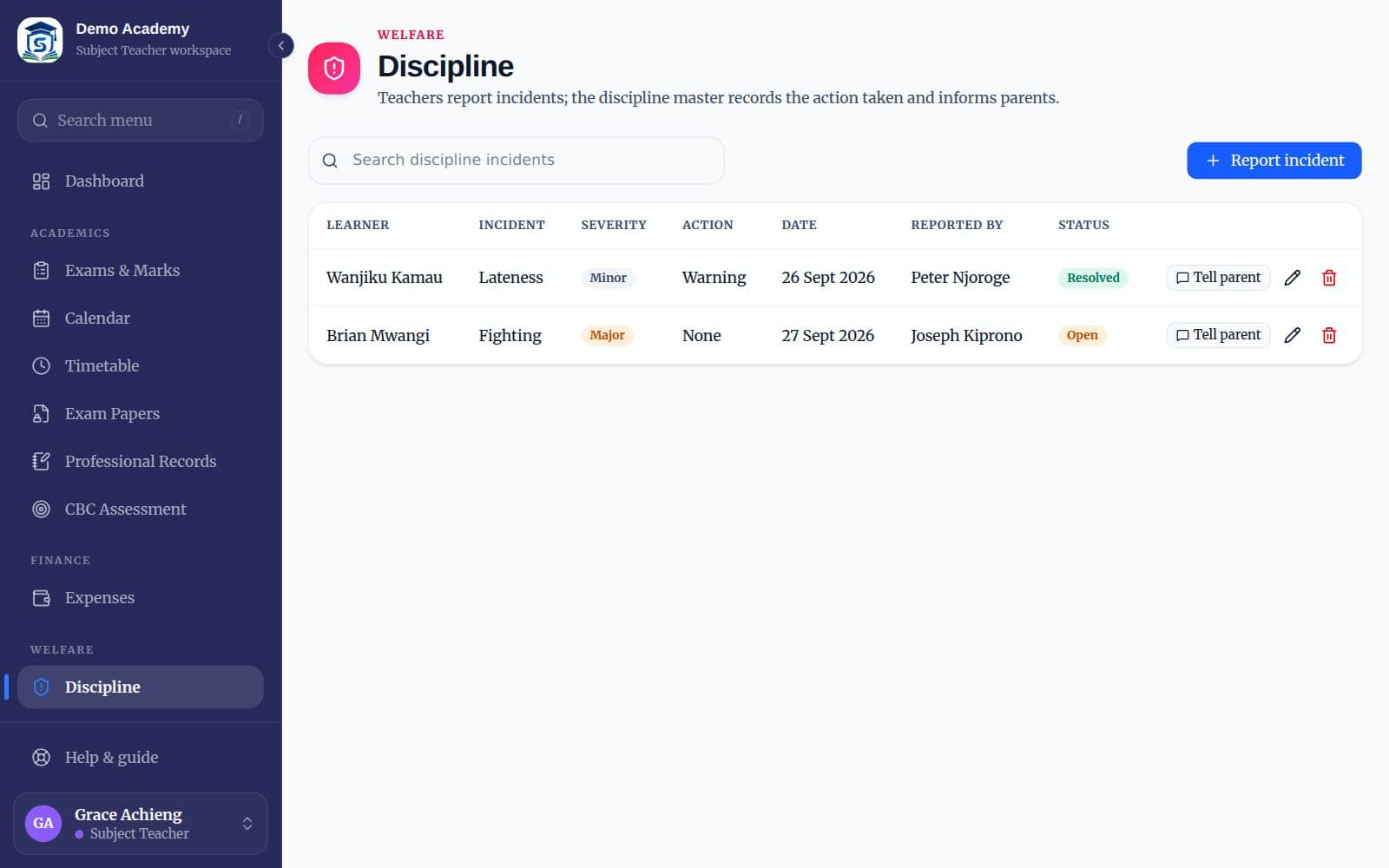
Any teacher can report an incident on the Discipline page. You see the incidents you reported; the discipline master decides the action and tells the parent.
Report it
Press “Report incident”. Choose the learner, the date, the category (for example lateness or fighting), how serious it is (minor, major or critical) and describe what happened.
What happens next
The discipline master records the action taken (for example a warning, counselling or calling the parent in), marks it resolved, and can text the parent with “Tell parent”.
Chapter 8
Getting help
Most questions are answered on the page itself: many pages have a “How to” panel at the bottom. For anything else, these are the places to go.
8.1Where to get help
This guide is always available from Help in the menu, and as a PDF you can download and print.
- Your school administrator can add or reset accounts, fix classes and subjects, and change school settings.
- For problems with Skulbase itself, use the contact page at skulbase.com/contact, or call 0740 129 444.
- When you report a problem, say which page you were on, what you pressed and what you expected. A screenshot helps.