
Skulbase user guide
Parent guide
For parents and guardians
How to activate your parent account and follow each of your children: results and report cards, fees, attendance, the school bus and school news. It also covers what you receive by SMS if you do not have an account.
Other guides: Administrator guide · Class teacher guide · Subject teacher guide · Staff guide · Learner guide · Academic leadership guide · Bursar and finance guide · Boarding and discipline guide · School nurse guide · Transport guide · Library, stores and HR guide
Chapter 1
Getting started
If your school uses the Parent Portal, it links your phone number to your child and gives you an invite code. One account shows all your children at the school.
1.1Activate your account with an invite code
The school gives you a personal invite code (or a link with the code in it). You use it once to set up your own login.
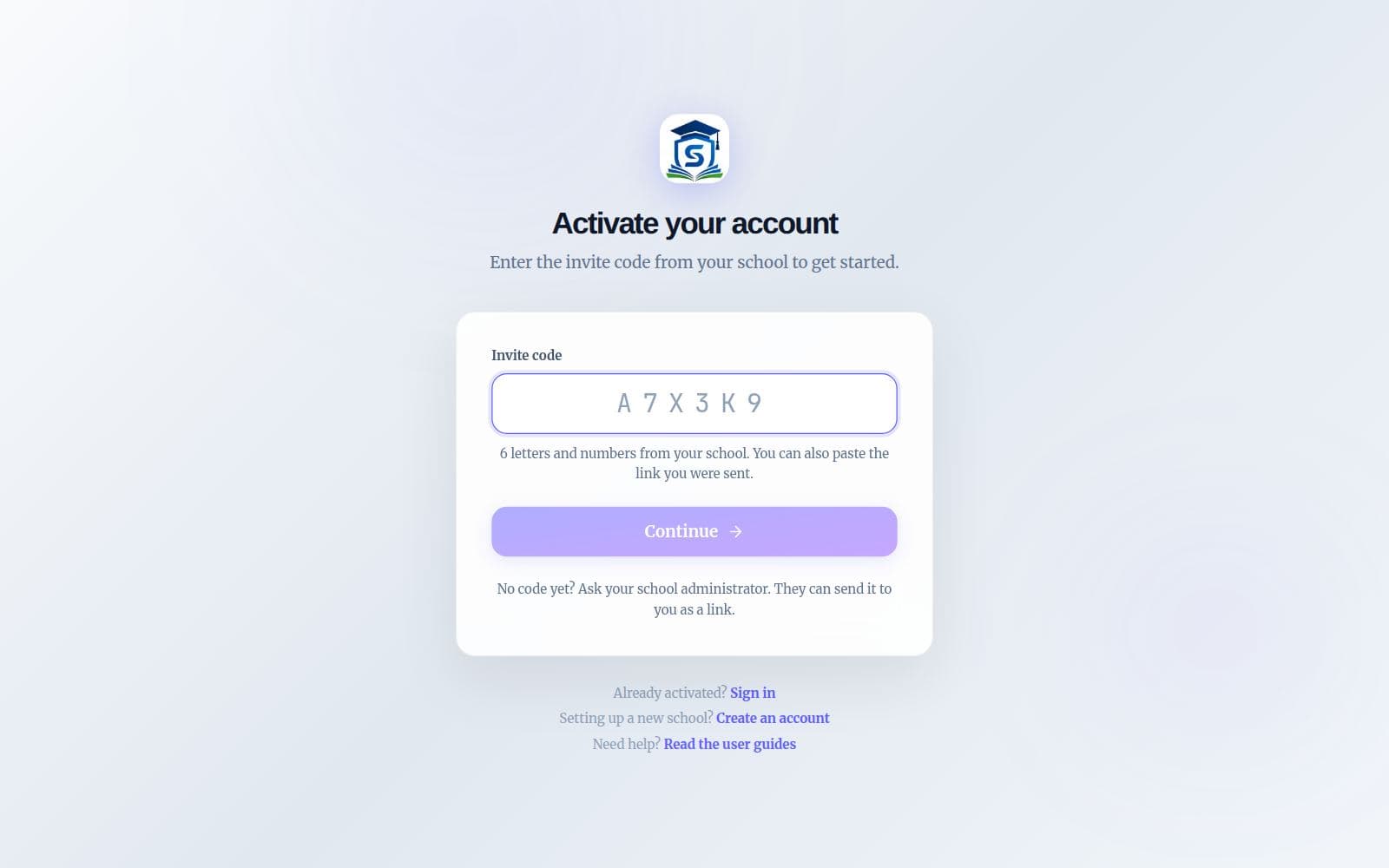
Get your code
Your school administrator gives you a six-character invite code, for example A7X3K9, by SMS, WhatsApp, on paper, or as a link. The code only works for your account.
Open the activation page
Tap the link you were sent, or go to skulbase.com, choose Sign in and then “Activate your account”. If you opened a link, the code is already filled in.
Check it is you
Press Continue. Skulbase shows the name the school registered. If it is not you, choose “Not you?” and ask the school for the right code.
Choose how you will sign in
Pick a username (one is suggested for you) and a password of at least 8 characters, or continue with Google. Adding an email address lets you reset your password yourself later.
You are in
You are signed in straight away and land on the home page for your role.
Good to know: Each code can be used once. If yours says it has expired or was already used, ask your administrator to reset your account; they get a fresh code in seconds.
1.2Sign in
Once your account is active, sign in with your email address or username and your password, or with Google if you activated with Google.
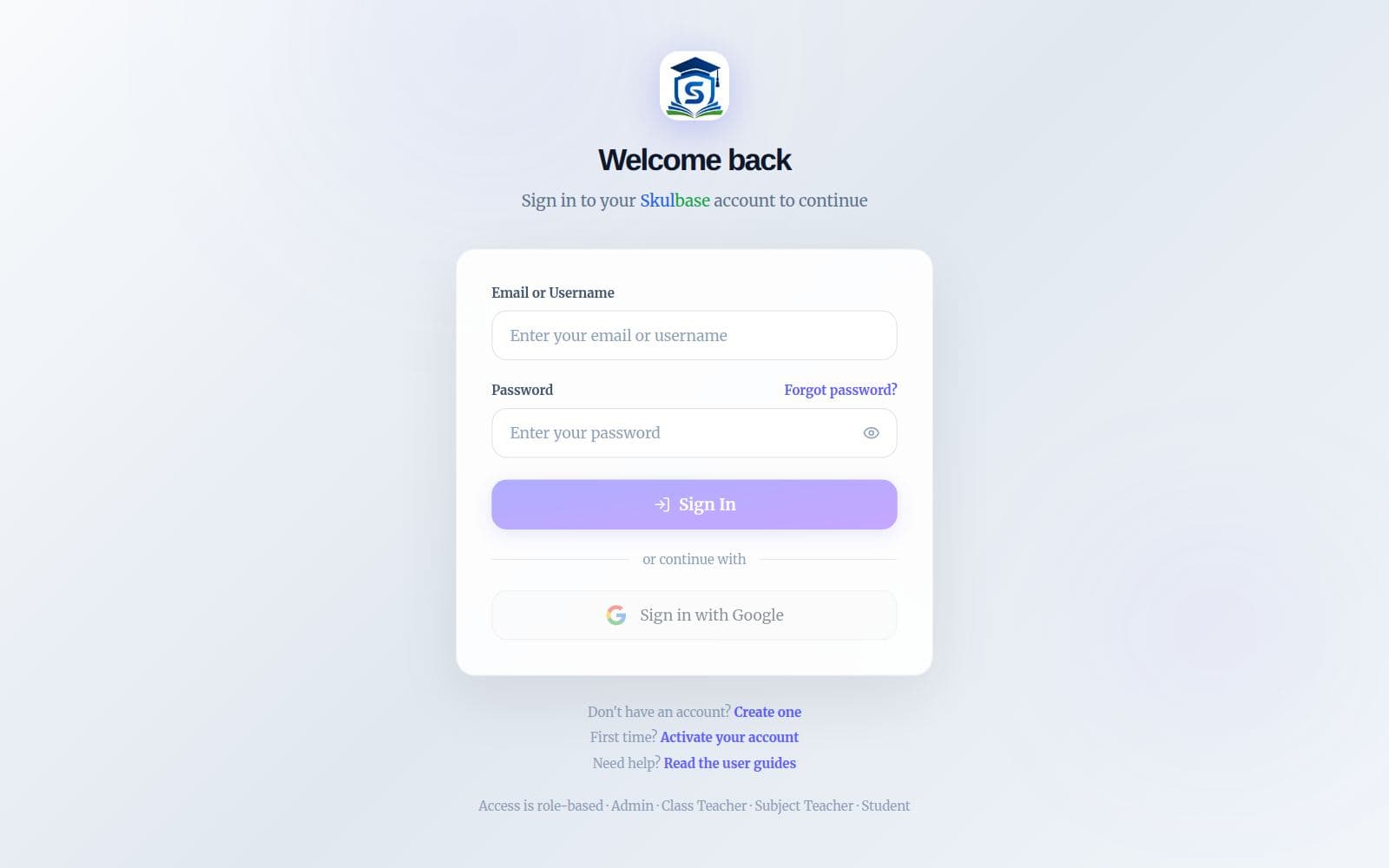
Go to the sign-in page
Open skulbase.com and choose Sign in.
Enter your details
Type your email address or username, then your password, and press Sign In. Or press “Sign in with Google”.
Forgot your password?
Choose “Forgot password?”, enter your email address, and type the six-digit code we email you along with a new password. This also works if you have only ever used Google, and afterwards both ways work.
Tip: Save skulbase.com to your phone’s home screen. It opens like an app and remembers you are signed in.
Chapter 2
My children
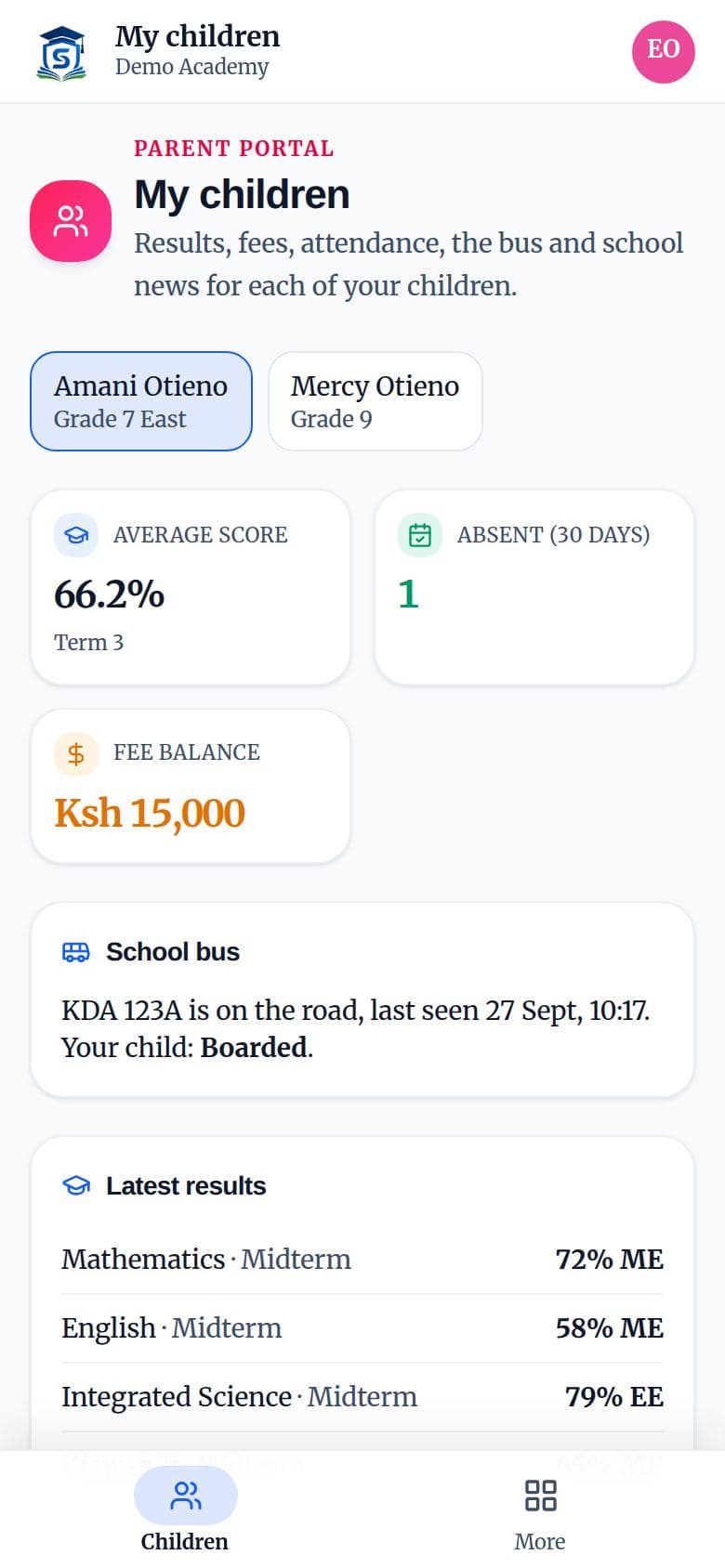
Your home page after signing in. Each child has a tab at the top; tap one to see their summary.
2.1A child at a glance
The figures at the top show the child’s average score for the current term, days absent in the last 30 days, the fee balance and, if they use it, the school bus.
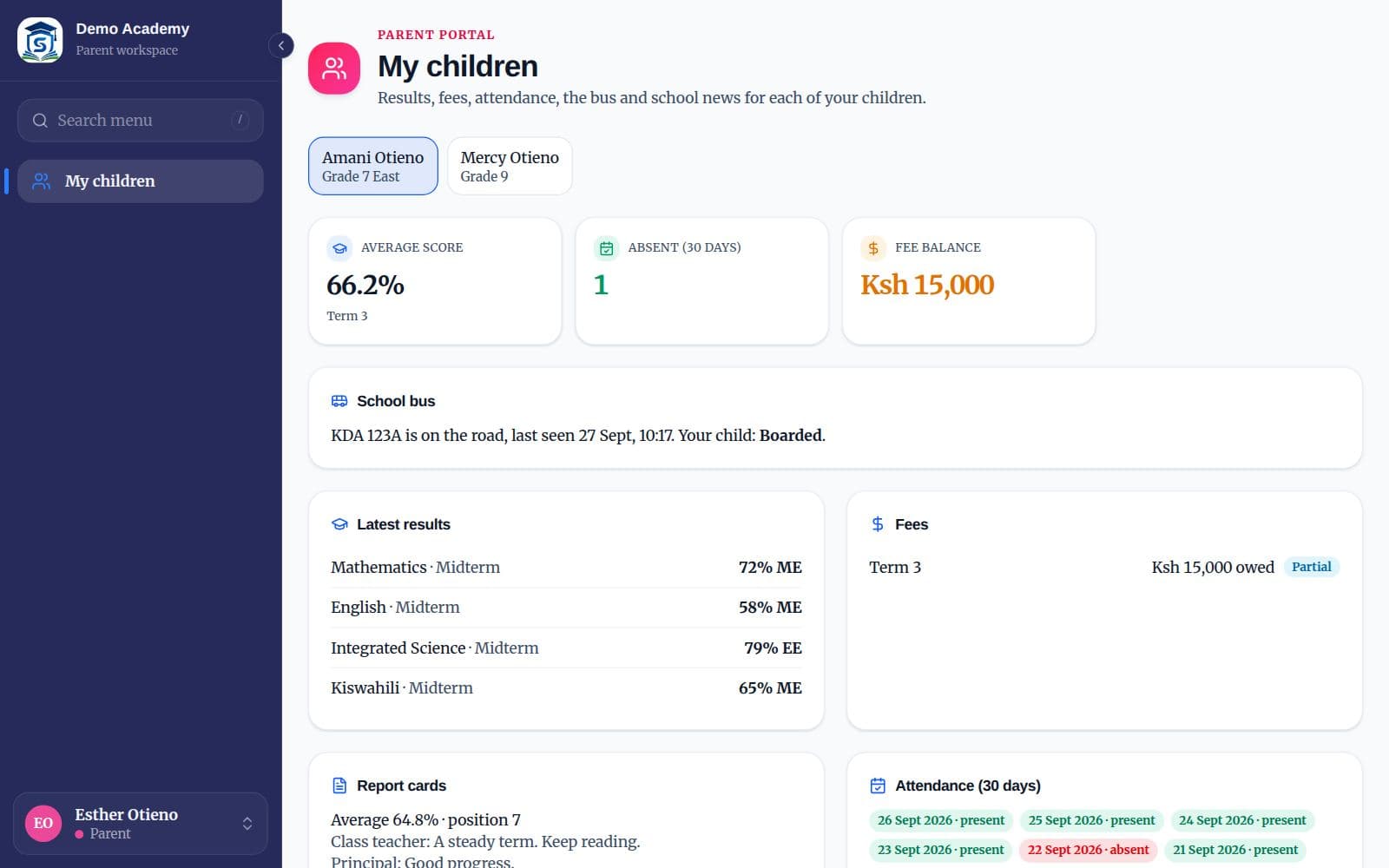
- School bus: whether the bus is on the road, when it was last seen, and whether your child has boarded. You also see their route and stop with pick-up and drop-off times.
- Latest results: the newest marks the school has released, with grades.
- Fees: what is owed for each term. To pay online, sign in on your child’s learner account and use their Fees page.
- Report cards: the average, position and teachers’ comments from each report card.
- Attendance: every school day in the last 30 days.
- Coming up and Notices: exams, meetings and holidays from the school calendar, and announcements.
2.2On your phone
The parent portal is built for phones. Save skulbase.com to your home screen to open it like an app.
2.3A child is missing
If a child does not appear, the school has not linked them to your phone number yet. Ask the school office to link your account to them under Parent accounts.
Chapter 3
Without an account
Parents who do not use the portal still hear from the school by SMS, on the phone number the school has for them.
3.1What you receive by SMS
Keep your phone number up to date with the school so these reach you.
- Results after an exam, when the school sends them.
- A text when your child is marked absent, if the class teacher sends absence notices.
- Fee balance reminders and important announcements, such as closing and opening dates.
- Printed report cards carry a QR code. Scan it with your phone camera to see the results the school approved, and check the card is genuine.
Chapter 4
Getting help
Most questions are answered on the page itself: many pages have a “How to” panel at the bottom. For anything else, these are the places to go.
4.1Where to get help
This guide is always available from Help in the menu, and as a PDF you can download and print.
- Your school administrator can add or reset accounts, fix classes and subjects, and change school settings.
- For problems with Skulbase itself, use the contact page at skulbase.com/contact, or call 0740 129 444.
- When you report a problem, say which page you were on, what you pressed and what you expected. A screenshot helps.