
Skulbase user guide
Staff guide
For non-teaching staff: bursars, secretaries, matrons, nurses, drivers, librarians, storekeepers and support staff
How to activate your account and sign in, what your dashboard shows, the tools every member of staff has, and which guide to read for your duty.
Other guides: Administrator guide · Class teacher guide · Subject teacher guide · Learner guide · Parent guide · Academic leadership guide · Bursar and finance guide · Boarding and discipline guide · School nurse guide · Transport guide · Library, stores and HR guide
Chapter 1
Getting started
Your administrator adds you as staff and gives you an invite code to activate your account.
1.1Activate your account with an invite code
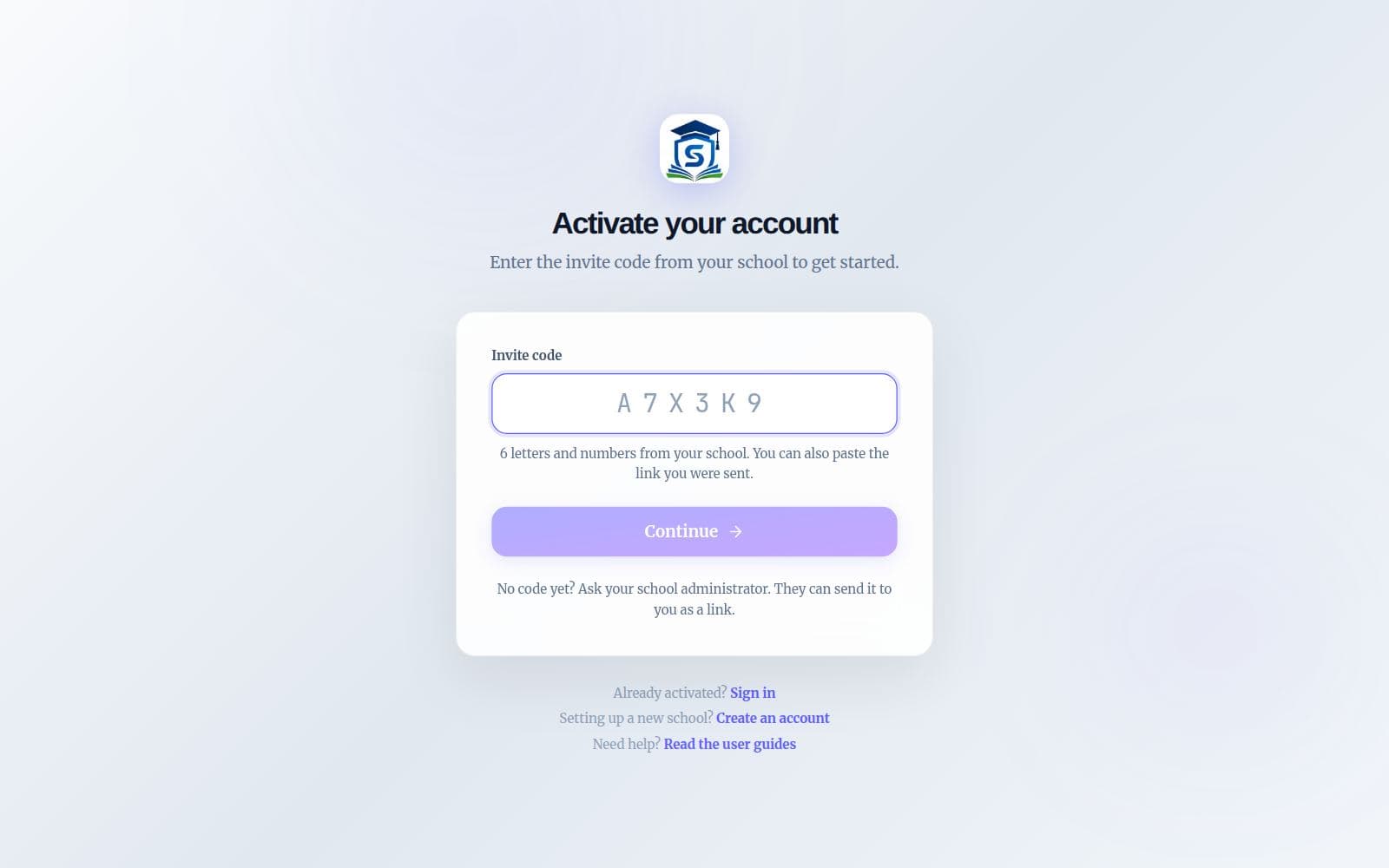
Teachers, staff and learners do not sign up on their own. Your school adds you, and you get a personal invite code (or a link that has the code in it) to set up your login.
Get your code
Your school administrator gives you a six-character invite code, for example A7X3K9, by SMS, WhatsApp, on paper, or as a link. The code only works for your account.
Open the activation page
Tap the link you were sent, or go to skulbase.com, choose Sign in and then “Activate your account”. If you opened a link, the code is already filled in.
Check it is you
Press Continue. Skulbase shows the name the school registered. If it is not you, choose “Not you?” and ask the school for the right code.
Choose how you will sign in
Pick a username (one is suggested for you) and a password of at least 8 characters, or continue with Google. Adding an email address lets you reset your password yourself later.
You are in
You are signed in straight away and land on the home page for your role.
Good to know: Each code can be used once. If yours says it has expired or was already used, ask your administrator to reset your account; they get a fresh code in seconds.
1.2Sign in
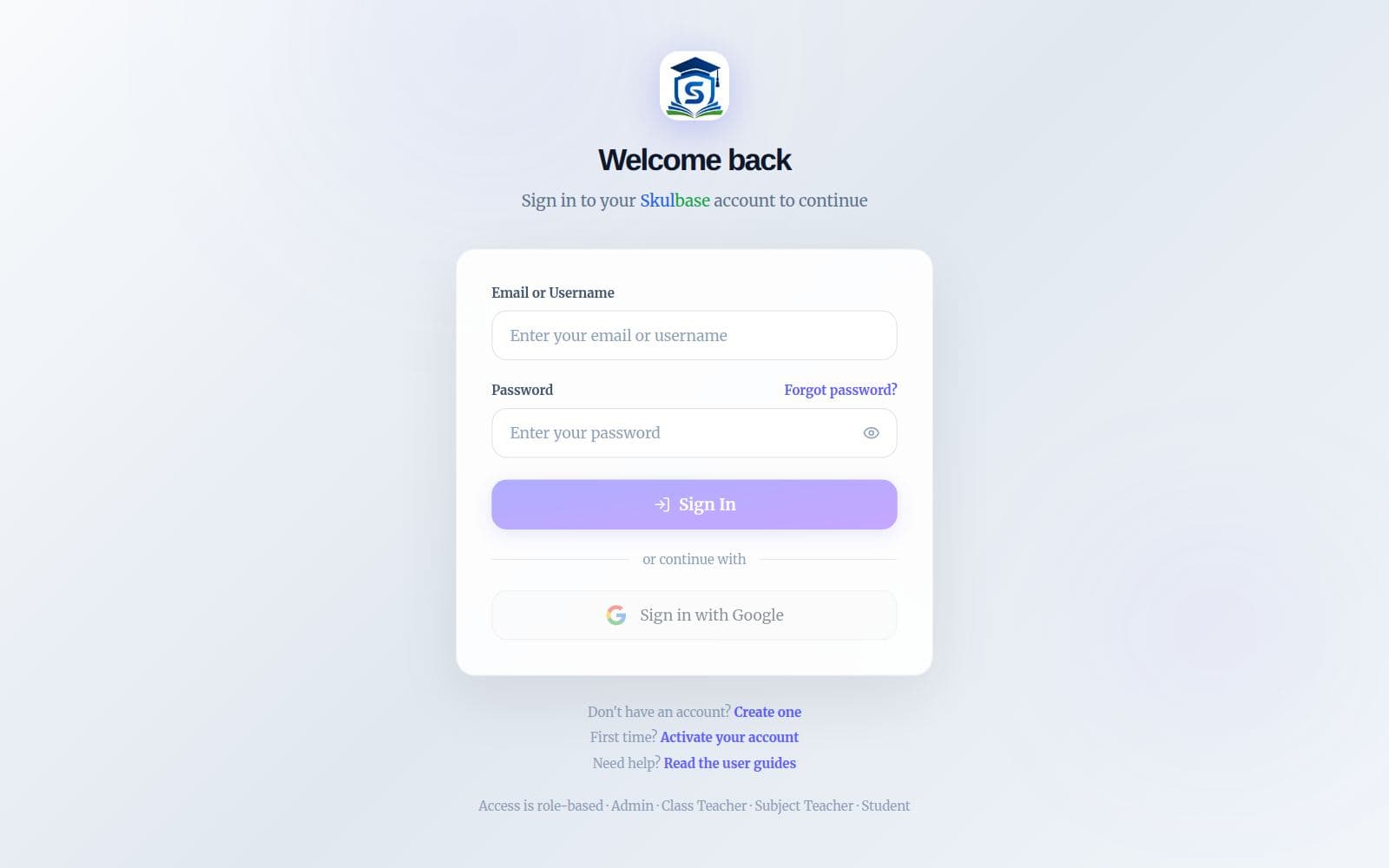
Once your account is active, sign in with your email address or username and your password, or with Google if you activated with Google.
Go to the sign-in page
Open skulbase.com and choose Sign in.
Enter your details
Type your email address or username, then your password, and press Sign In. Or press “Sign in with Google”.
Forgot your password?
Choose “Forgot password?”, enter your email address, and type the six-digit code we email you along with a new password. This also works if you have only ever used Google, and afterwards both ways work.
Tip: Save skulbase.com to your phone’s home screen. It opens like an app and remembers you are signed in.
Chapter 2
Your duty and your menu
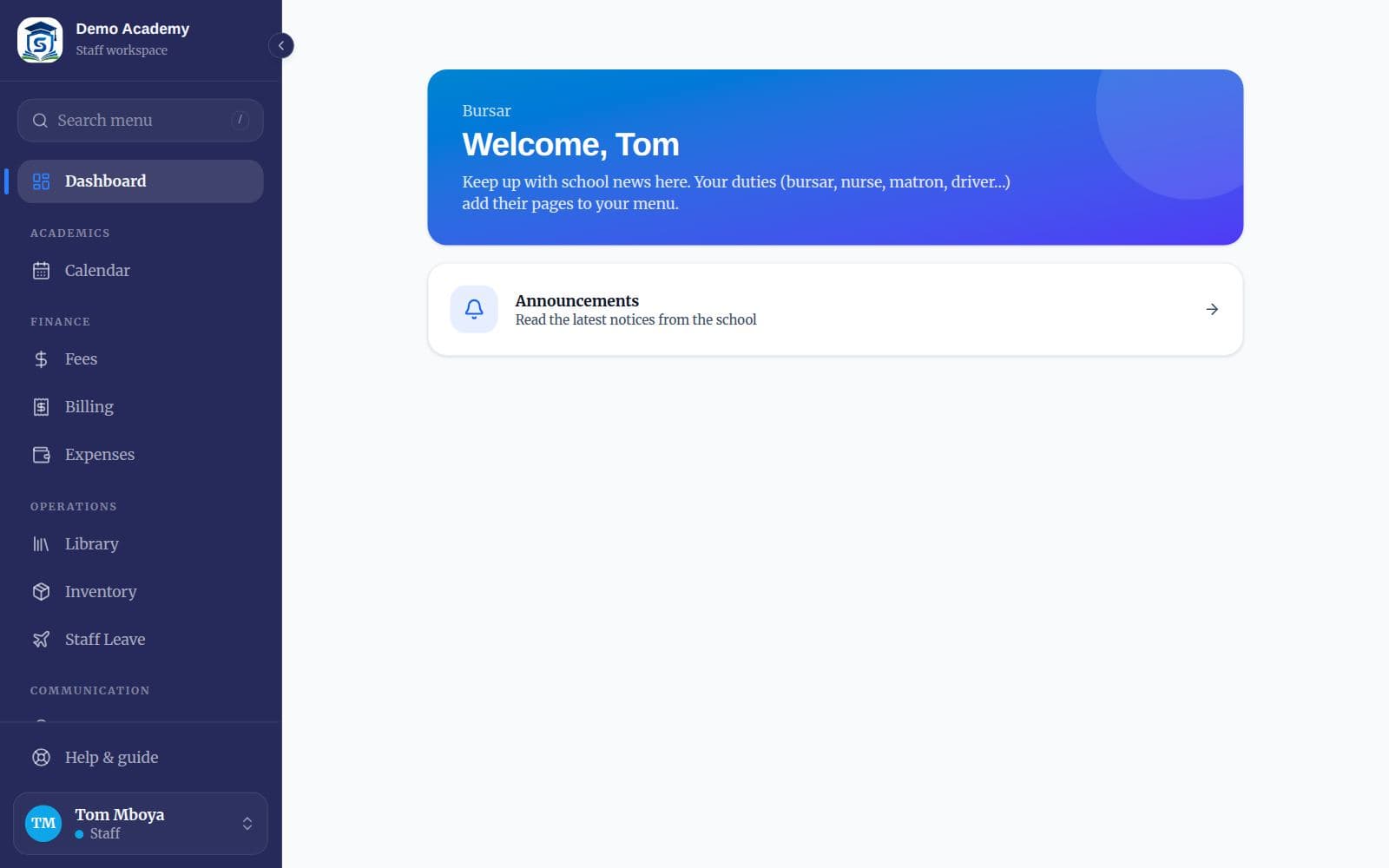
Staff accounts start with announcements, the calendar, leave and store requests. The administrator then gives you a duty under Settings → Roles & duties, and the pages for your job appear in your menu.
2.1Your dashboard
Your dashboard welcomes you with your job title and links to Announcements. Pages for your duty are in the menu on the left (on a phone, under More).
2.2Which guide to read
Each duty has its own illustrated guide, available from Help & guide in your menu and at skulbase.com/help.
- Bursar or Accountant: the Bursar and finance guide.
- Matron, Patron or Discipline Master: the Boarding and discipline guide.
- School Nurse: the School nurse guide.
- Transport Manager or Driver: the Transport guide.
- Librarian, Storekeeper or HR / Secretary: the Library, stores and HR guide.
- Principal, Deputy, DOS, HOD, Timetabler or Exams Officer: the Academic leadership guide.
Tip: If a page you need is missing, your duty has not been assigned yet, or your school has not switched that module on. Ask your administrator.
2.3Post announcements
Announcements are notices for the whole school. Read them on the Announcements page; administrators and teachers post them.
- Search, or filter to Important or to the ones you posted.
- Only administrators can text an announcement to guardians. Ask your administrator if something needs to go out by SMS.
Chapter 3
Calendar, leave and requests
Tools every member of staff has. You only see a page if your school has switched its module on and your role or duty uses it. If something here is missing from your menu, ask your administrator.
3.1The school calendar
Calendar lists what is coming up across the school: exam windows, marks deadlines, report-card release dates, meetings and holidays. Everyone can read it; the DOS, deputy and principal add events.
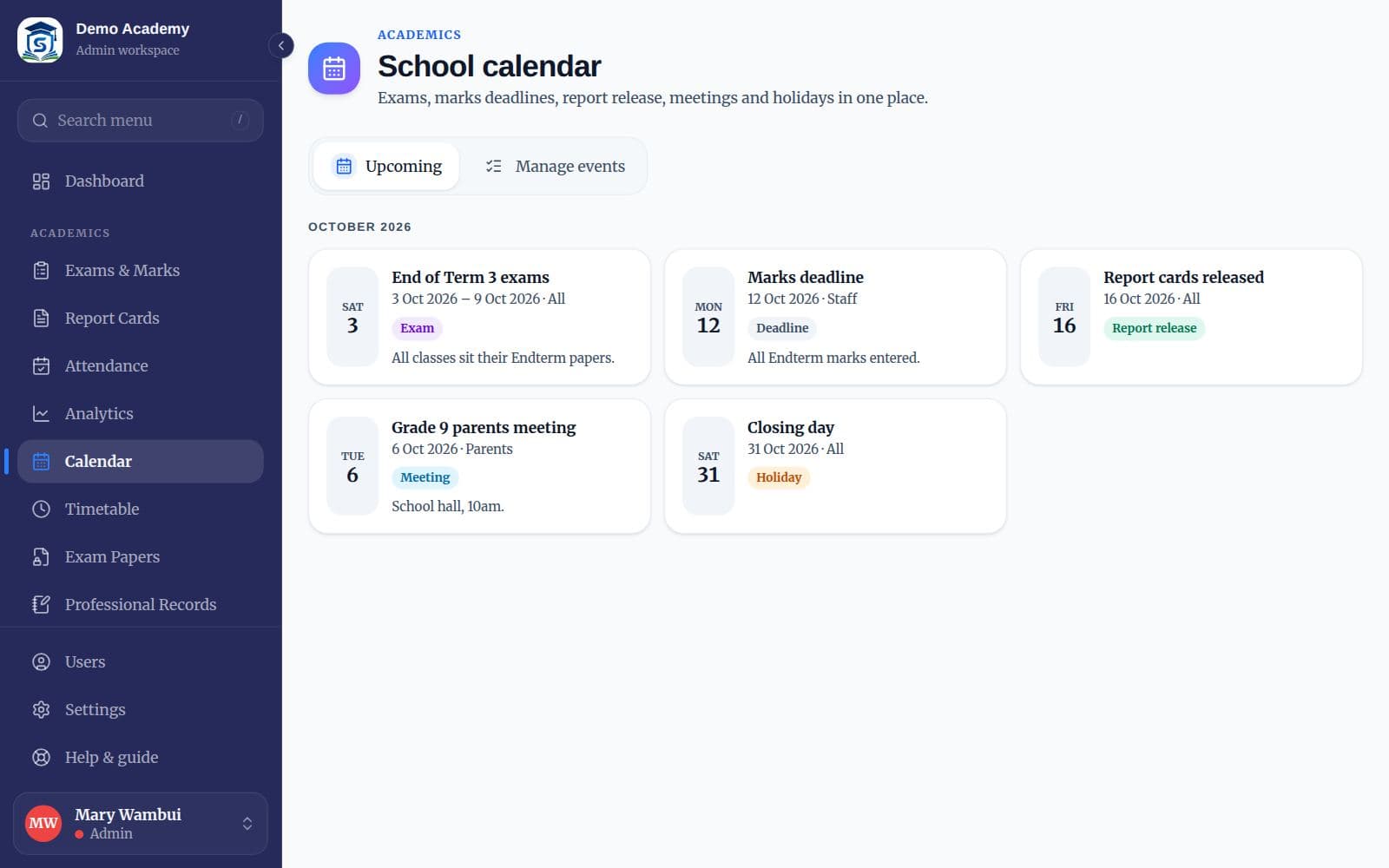
- Events are marked by type (exam, deadline, report release, meeting, holiday) and by who they are for: everyone, staff, learners or parents.
- Parents and learners only see events meant for them.
- To add an event (if you are allowed), open “Manage events”, press Add, and fill in the title, type, dates, who sees it and any details. An event can be linked to an exam.
3.2Your timetable
Timetable shows the published timetable for the week: periods down the side, days across the top, each lesson with its class, teacher and room. On a phone it shows one day at a time.
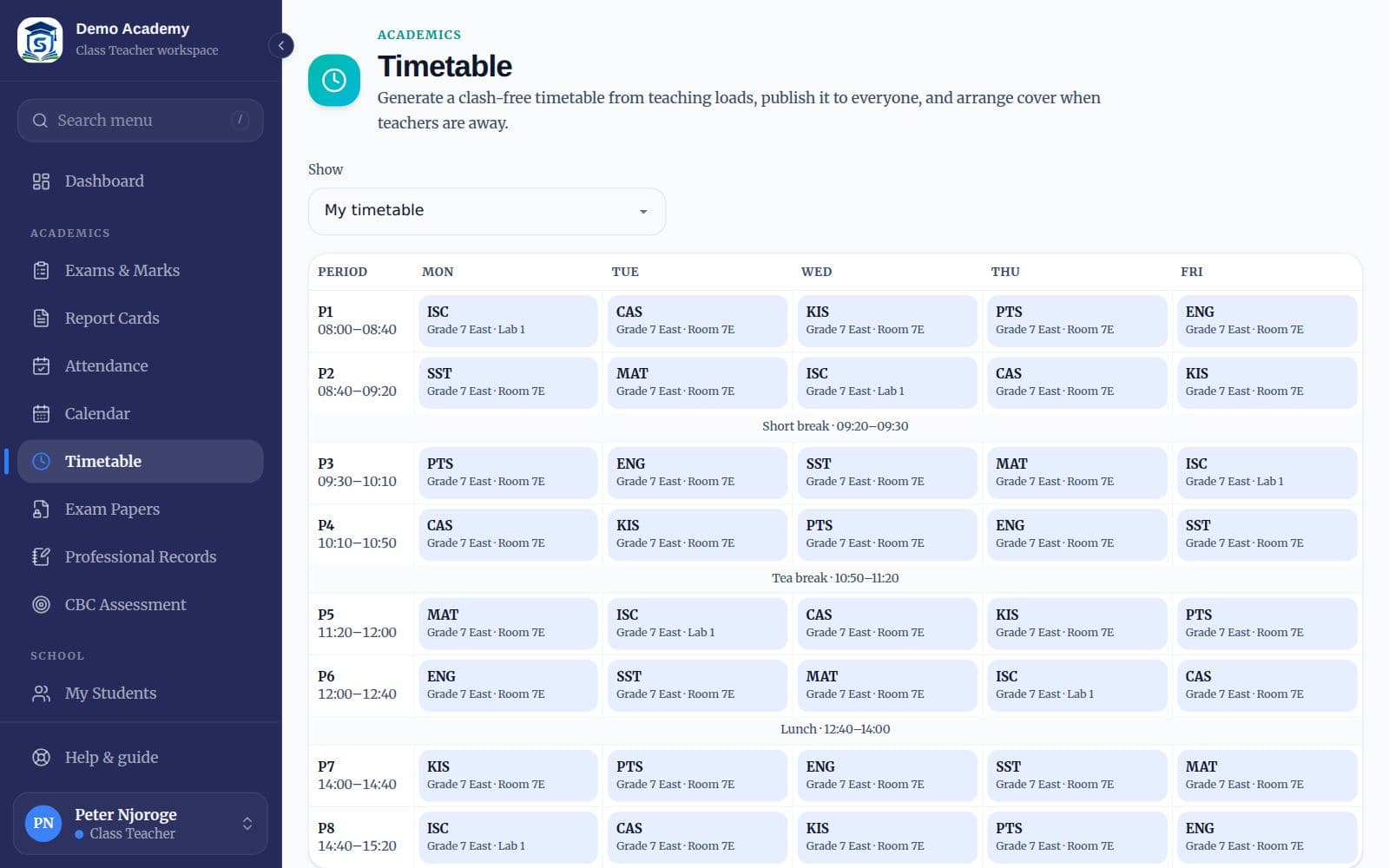
- “Show” switches between your own timetable and any class, teacher or room.
- When a colleague is away and you are asked to cover a lesson, it is arranged under “Lesson cover”; check the timetable at the start of each day.
3.3Apply for leave
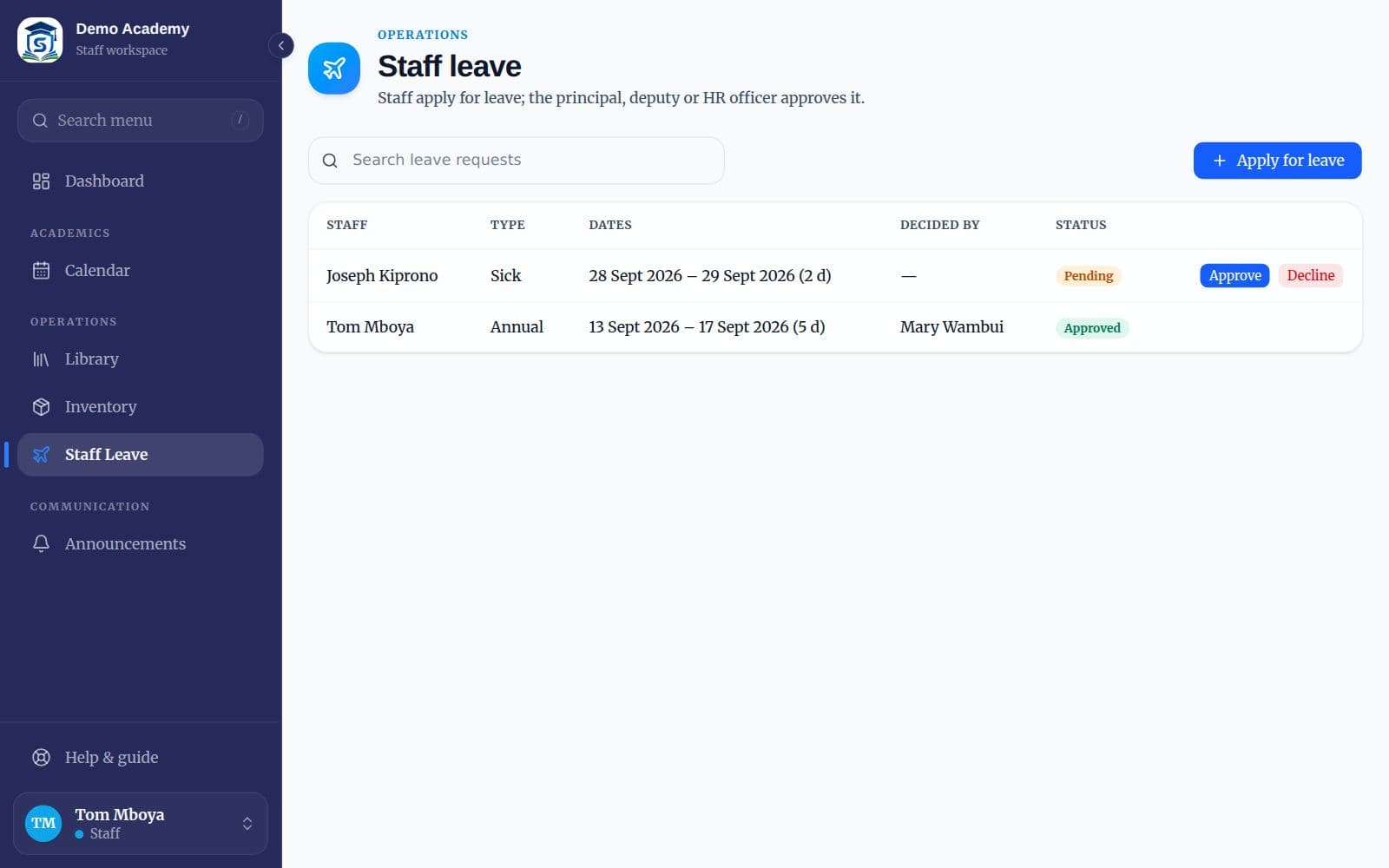
Staff Leave is where you ask for time off. The principal, deputy or HR officer approves it, and you can see the decision on the same page.
Apply
Press “Apply for leave”. Choose the type (annual, sick, maternity, compassionate and so on), the first and last day, and the reason.
Arrange cover
Under “Lessons and duties to cover”, say who will take your classes or duties, so the timetabler can arrange cover.
Wait for a decision
The request shows Pending until it is approved or declined. You can edit or cancel it while it is pending.
3.4Ask the store for supplies
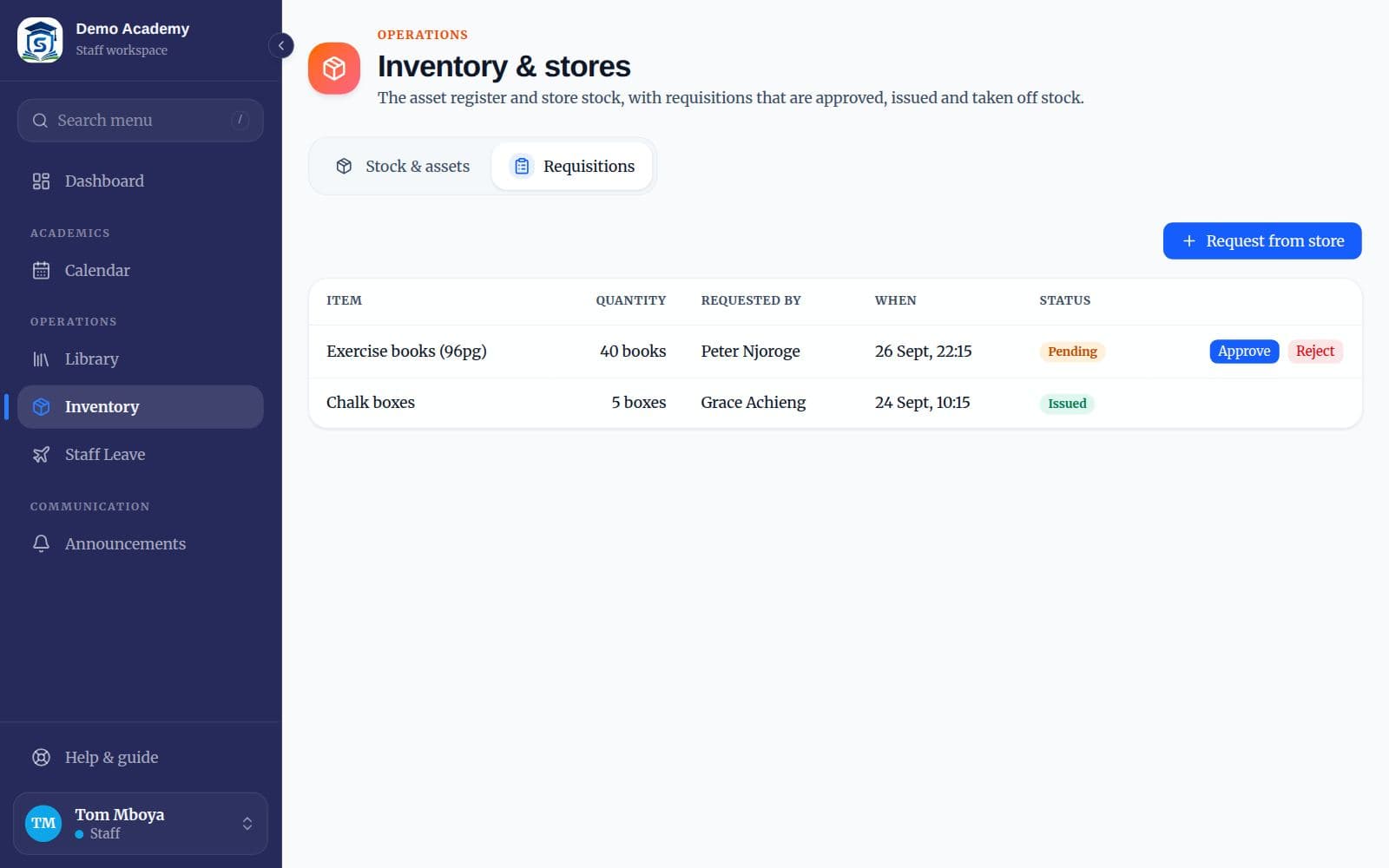
Inventory & stores → Requisitions is how you ask for exercise books, chalk, chemicals or equipment. The storekeeper approves the request and issues the items, and the stock count goes down automatically.
Request
Press “Request from store”, choose the item, the quantity and what it is for (for example “Grade 7 exam booklets”).
Collect
When the storekeeper approves and issues it, the status changes to Issued. Collect the items from the store.
3.5Ask for money to be spent
Expenses → My requests lets any staff member raise a payment voucher, for example to buy lab chemicals or pay for printing. The bursar or principal approves it before it is paid.
Raise it
Press “Record expense”. Say what it is for, the amount, the date, the supplier and the vote head, and attach the invoice reference.
Follow it
It shows Pending, then Approved (waiting for payment) or Rejected, then Paid with the payment reference.
Chapter 4
Getting help
Most questions are answered on the page itself: many pages have a “How to” panel at the bottom. For anything else, these are the places to go.
4.1Where to get help
This guide is always available from Help in the menu, and as a PDF you can download and print.
- Your school administrator can add or reset accounts, fix classes and subjects, and change school settings.
- For problems with Skulbase itself, use the contact page at skulbase.com/contact, or call 0740 129 444.
- When you report a problem, say which page you were on, what you pressed and what you expected. A screenshot helps.